X
wikiHow is a “wiki,” similar to Wikipedia, which means that many of our articles are co-written by multiple authors. To create this article, volunteer authors worked to edit and improve it over time.
This article has been viewed 49,136 times.
Learn more...
In case you wanna change the currently installed ESET Smart Security 5 to other security suite product, you can enter the preferred instructions below to uninstall it.
Steps
Method 1
Method 1 of 4:Launch Its Uninstaller
Method 1
-
1To fast uninstall ESS-5, you just need to click Windows Start button, open up All Programs list and then enter ESET file folder on that menu.
-
2You go on clicking on ESET Smart Security entry in it; scroll down and run the Uninstall application to automatically remove ESS-5 from your device.Advertisement
-
3Click Next > button on ESET Smart Security Setup.
-
4Select the Remove entry provided by Setup wizard.
-
5You can send your ESS experience by selecting the survey option for Questionnaire. You could also untick the check box for it and then you click Next > button on ESS Setup - Questionnaire.
-
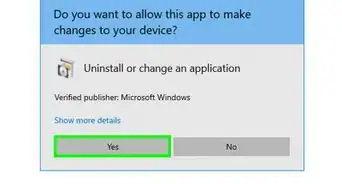
6Click Remove button labeled Microsoft trademark; click Yes on Windows UAC, and wait for the automatic removal procedure completes.
-
7Click Finish on ESS Setup.
-
8Save your other open files and/or programs and then you restart your computer selecting option Yes for Installer Information window.Advertisement


Method 2
Method 2 of 4:Uninstall ESS-5 from Windows
Method 2
-
1Typically, you click Start > (Settings) > Control Panel.
-
2For Windows 7/Vista users, you open up the Programs - Uninstall a program; and for Windows XP SP3 users, you click Add or Remove Programs then.
-
3Locate and run the ESET Smart Security program listed and then, please review Option One above to complete the wizards by ESS Setup.Advertisement


Method 3
Method 3 of 4:Method 3: Run the ESS-5 UninstallString to Remove It
Method 3
-
1Run Windows Command Prompt by pressing Windows key + R key and then input cmd in Run - Open box.
-
2Type the following line, [cd].
-
3Open and copy the value of "C:\Program Files\ESET\ESET Smart Security\" saved in (ESS-5) Uninstall Properties - Shortcut tab.
-
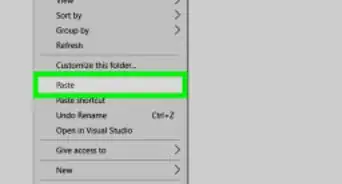
4Run the Paste command in Edit menu, press Enter again.
-
5Copy and paste this string in cmd.exe, [callmsi.exe /i {83E3F4E4-CEA1-452B-9180-A40813CD111C}], press Enter key.
-
6Review the Option sections above to uninstall ESS-5.Advertisement


Method 4
Method 4 of 4:Additional Step
Method 4





About This Article
Advertisement