X
This article was written by Nicole Levine, MFA. Nicole Levine is a Technology Writer and Editor for wikiHow. She has more than 20 years of experience creating technical documentation and leading support teams at major web hosting and software companies. Nicole also holds an MFA in Creative Writing from Portland State University and teaches composition, fiction-writing, and zine-making at various institutions.
This article has been viewed 75,890 times.
This wikiHow teaches you how to restart or reset an iPad with a frozen screen. An iPad can become frozen if an application or the operating system stops working, battery charge is too low, or if the unit has not started up properly.
Steps
Method 1
Method 1 of 5:Force-closing a Frozen App
Method 1
-
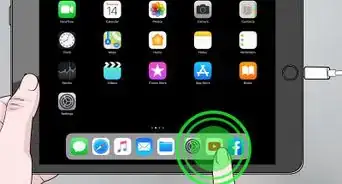
1Swipe up from the bottom of the screen. If you're using an iPad running iOS 12 or later, this will display a list of currently-open apps. When your finger reaches the middle of the screen, pause your upward-swipe.[1]
- If you're using an older version of iOS, double-click the Home button at the bottom of the screen to show a list of recently-used apps.
-
2Locate the frozen app. If the frozen app does not appear on this screen, swipe left or right until you see it.[2]Advertisement
-
3Swipe up on the frozen app. This should close the app.Advertisement


Method 2
Method 2 of 5:Restarting the iPad
Method 2
-
1Press and hold the Power button until the slider button displays on-screen. This button is usually on the top or side of the iPad. If the iPad is frozen but the home screen (or an app) is still visible, you may be able to use this method to restart it.
-
2Use your finger to slide the button to its “Off” position. Your iPad will shut down.
-
3Press and hold the Power button to power on your iPad. If your iPad turns back on and works properly, you should be all set. If not, try doing a hard reset.[3]Advertisement


Method 3
Method 3 of 5:Hard-resetting an iPad Pro
Method 3
-
1Try opening or closing an app on your iPad. If the iPad's screen is black or otherwise unusable, use this method to perform a hard reset.
- Use this method if you have an 11” or 12.9” iPad Pro.
- This method also works for the iPhone X, XR, and other X models.
-
2Press and release the Volume-Up button. As soon as you release your finger, move quickly to the next step.[4]
-
3Press and release the Volume-Down button. Again, move quickly to the next step once you release your finger.
-
4Press and hold the Power button until the iPad restarts. This should reboot your iPad to a functional home screen.
- If your iPad does not come back up or is still unusable, try charging it for an hour.
Advertisement


Method 4
Method 4 of 5:Hard-resetting an iPad Mini or Standard
Method 4
-
1Try opening or closing an app on your iPad. If the iPad's screen is black or otherwise unusable, use this method to perform a hard reset.
- Use this method for standard iPads and the iPad Mini.
-
2Press and hold the Home and the top (or side) buttons at the same time. Continue holding these buttons for about 10 seconds.
-
3Release your fingers when the Apple logo appears. This should reboot your iPad to a functional home screen.
- If your iPad does not come back up or is still unusable, try charging it for an hour.
Advertisement


Method 5
Method 5 of 5:Charging the iPad
Method 5
-
1Connect the iPad to a power source. If your iPad won't start up or turn on, it may need to be charged for an extended period of time. Use the cord that came with your iPad (or a compatible replacement) to connect your iPad to a wall charger, your computer, or another power source.
-
2Check for the lightning icon next to the battery indicator. If you are able to view the home screen, you should see a tiny lightning bolt at the top-right corner (to the right of the battery indicator). This means the iPad is charging.[5]
- If you can see the home screen but the iPad is not charging, try connecting it to a different power source. If that doesn't work, try to use a different charging cable.
- If the iPad will not turn on, allow it to charge for approximately one hour.[6]
-
3Turn on the iPad after one hour of charging. Press and hold the Power button on your iPad to turn it back on.
- If you are still not able to use the iPad, see How to Restore an iPad to learn how to restore your iPad to its original factory settings.
Advertisement


Community Q&A
-
QuestionWhat can I do if the power off button doesn't appear?
 Community AnswerHold the power off button down for 5 seconds to turn it off. To turn it on, press the button again for 5 seconds.
 -
QuestionWhat can I do if it does not let me turn it off all of the way?
 Community AnswerPush the off button for a good amount of seconds and it will turn off and restart with out any changes or damage.












References
About This Article

Nicole Levine, MFA
Tech Specialist
This article was written by Nicole Levine, MFA. Nicole Levine is a Technology Writer and Editor for wikiHow. She has more than 20 years of experience creating technical documentation and leading support teams at major web hosting and software companies. Nicole also holds an MFA in Creative Writing from Portland State University and teaches composition, fiction-writing, and zine-making at various institutions. This article has been viewed 75,890 times.
How helpful is this?
Co-authors: 9
Updated: January 8, 2020
Views: 75,890
Categories: Ipad
Advertisement