X
wikiHow is a “wiki,” similar to Wikipedia, which means that many of our articles are co-written by multiple authors. To create this article, volunteer authors worked to edit and improve it over time.
This article has been viewed 15,200 times.
Learn more...
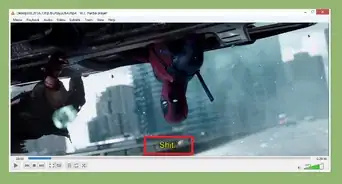
Subtitles are turned on by default in the VLC media player. Sometimes it can be annoying and also affect your movie experience. This wikiHow article will teach you how to turn off subtitle of a video in VLC media player.
Steps
-
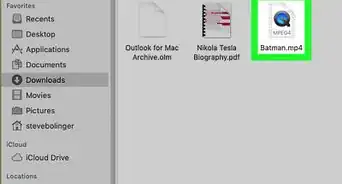
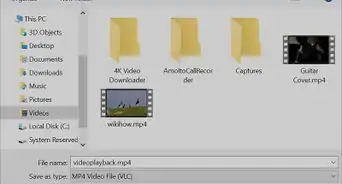
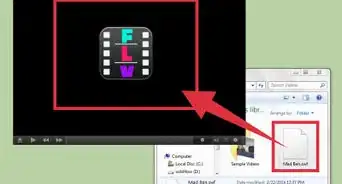
1Open your video with the VLC media player. Right click on a video file and select VLC media player from the Open with option.
-
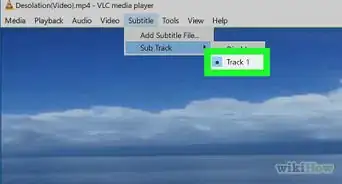
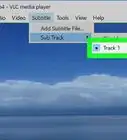
2Navigate to Subtitle option. To do that, right click on the video screen and select Subtitle from there.
-
3Move to Sub track option. You can see it under the Add Subtitle File option.
-
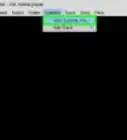
4Click on the Disable option. Now subtitle will temporarily disappear from your video.
-
5Finished. To re-enable the subtitle on your video, right click on the video and navigate to Subtitle> Sub track and select your subtitle from there. Done!