X
wikiHow is a “wiki,” similar to Wikipedia, which means that many of our articles are co-written by multiple authors. To create this article, volunteer authors worked to edit and improve it over time.
This article has been viewed 137,533 times.
Learn more...
FLV is a file format commonly used for online video streaming on websites such as YouTube, MetaCafe, Vevo, and more. FLV isn’t a default file format type on Windows and Mac OS X, but you can play FLV files using any third-party media player that supports FLV playback.
Steps
Method 1
Method 1 of 3:VideoLAN VLC Media Player
Method 1
-
1Navigate to VideoLAN’s official website at http://www.videolan.org/.
-
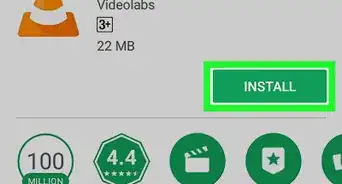
2Select the option to download the VideoLAN VLC media player to your Windows or Mac computer.Advertisement
-
3Double-click on the installer file to launch the VideoLAN installation wizard, and follow the on-screen prompts to install the media player on your computer. The application will launch automatically when installation is complete.
-
4Click on “Media” at the top of your VideoLAN session, and select “Open File.” The “open file” dialog box will display on-screen.
-
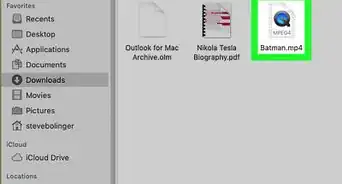
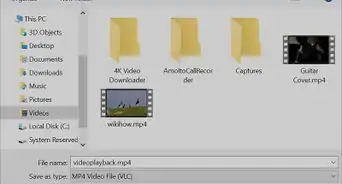
5Click on “Browse,” then navigate to the FLV file you want opened.
-
6Select the FLV file, then click on “Open.” The FLV file will open and play within VideoLAN’s media player.[1]Advertisement


Method 2
Method 2 of 3:Wimpy Desktop FLV Player
Method 2
-
1Navigate to Wimpy’s official website at http://www.wimpyplayer.net/products/wimpy_standalone_flv_player.html.
-
2Select the option to download the Wimpy Desktop FLV Player to your Windows or Mac computer.
-
3Double-click on the installer file to launch the Wimpy installation wizard, and follow the on-screen prompts to install the media player on your computer. The Wimpy media player will launch automatically when installation is complete.
-
4Drag and drop the FLV file into the Wimpy media player. The FLV file will immediately open and begin playing.[2]Advertisement


Method 3
Method 3 of 3:FLV Player by Applian (Windows Only)
Method 3
-
1Navigate to the official website for Applian Technologies.
-
2Click on the “Download” link to download the FLV player to your Windows-based computer.
-
3Right-click on the installer file and select “Run as administrator.” This will launch the Applian installation wizard.
-
4Follow the on-screen prompts to install the media player on your computer. FLV Player will launch automatically following installation.
-
5Open a session of Windows Explorer and navigate to the FLV file you want opened.
-
6Drag and drop the FLV file into the FLV Player. The FLV file will open and begin playing in the media player.[3]Advertisement





References
About This Article
Advertisement