This article was written by Travis Boylls. Travis Boylls is a Technology Writer and Editor for wikiHow. Travis has experience writing technology-related articles, providing software customer service, and in graphic design. He specializes in Windows, macOS, Android, iOS, and Linux platforms. He studied graphic design at Pikes Peak Community College.
The wikiHow Tech Team also followed the article's instructions and verified that they work.
This article has been viewed 1,076 times.
This wikiHow teaches you how to turn off recommended notifications on YouTube Music on PC or Mac. You can turn off activity and location based recommendations in the Privacy Settings menu.
Steps
-
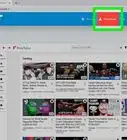
1Go to https://music.youtube.com in a web browser. This takes you to the YouTube Music website. You an use any web browser on PC or Mac.
- If you are not signed in automatically, click Sign In in the upper-right corner and select the Google account associated with your YouTube Music account and enter your password. If you don't see your YouTube Music account, click Use another account and sign in with the email address and password associated with your YouTube Music account.
-
2Click your profile image. It's the circular image that contains the image you selected for your Google account. It's in the upper-right corner. This displays the Account menu.
- If you have not selected a profile image for your Google account, it displays a colored circle with your initial.
Advertisement -
3Click Settings. It's next to an icon that resembles a gear in the Account menu. It's near the bottom of the drop-down menu.
-
4Click Privacy. It's the third option in the settings menu. It's in the sidebar to the left.
-
5
-
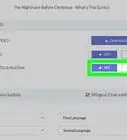
6Toggle the Pause activity-based recommendations switch to . It's the last option in the privacy Settings menu. The toggle switch to the right should turn blue.Advertisement






About This Article

1. Go to https://music.youtube.com and sign in.
2. Click your profile icon in the upper-right corner.
3. Click Settings.
4. Click Privacy.
5. Click Pause location-based recommendations.
6. Click Pause activity-based recommendations.