X
This article was written by Jack Lloyd. Jack Lloyd is a Technology Writer and Editor for wikiHow. He has over two years of experience writing and editing technology-related articles. He is technology enthusiast and an English teacher.
This article has been viewed 4,037 times.
Read receipts let a contact know that you've read their message. If you don't like this feature, you can disable it completely on all renditions of Apple Messages; you can also disable it for specific contacts.
Steps
Method 1
Method 1 of 4:Turning Off All Read Receipts (iOS)
Method 1


Method 2
Method 2 of 4:Turning Off All Read Receipts (Mac)
Method 2
-
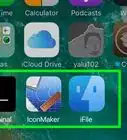
1Open the Messages program. This is the blue speech bubble icon in your dock.
-
2Click Messages. You can find this in the top left corner of your Mac's screen in the toolbar.[1]
-
3Click Preferences.
-
4Click the "Accounts" tab.
-
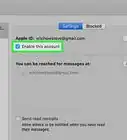
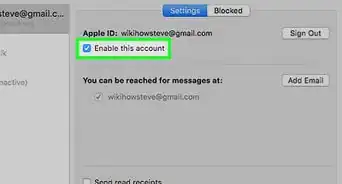
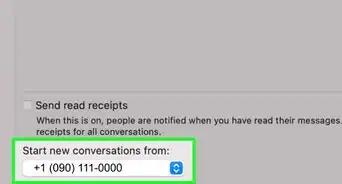
5Uncheck the box next to "Send read receipts".
-
6Exit the Preferences menu. Now you won't send read receipts!Advertisement


Method 3
Method 3 of 4:Disabling Read Receipts for a Specific Contact (iOS)
Method 3
-
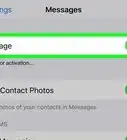
1Open the Messages app. If you have read receipts enabled but wish to disable them for a specific contact, you can do so from within a conversation with that contact.
-
2Tap a conversation. If you're already in a conversation, tap < in the top left corner of your screen to return to your "Messages" menu.
-
3Tap your conversation's "Details" icon. This is the encircled "i" in the top right corner of your screen.
-
4Tap the green switch next to "Send Read Receipts". It should turn grey.
- If this switch is already grey, your read receipts are already turned off.
-
5Tap Done. Your contact will no longer receive read receipts!Advertisement


Method 4
Method 4 of 4:Disabling Read Receipts for a Specific Contact (Mac)
Method 4
-
1Open the Messages program. This is the blue speech bubble icon in your dock.
-
2Click a conversation. You can browse your currently-saved conversations from the left side of your screen.
-
3Click Details. This will be in the top right corner of your conversation page.[2]
-
4Uncheck the box next to "Send Read Receipts".
-
5Click Details again. Your contact will no longer receive read receipts!Advertisement


Warnings
- If you have read receipts enabled, all of your contacts will see them by default.Thanks!
Advertisement


References
About This Article
Advertisement