This article was written by Nicole Levine, MFA. Nicole Levine is a Technology Writer and Editor for wikiHow. She has more than 20 years of experience creating technical documentation and leading support teams at major web hosting and software companies. Nicole also holds an MFA in Creative Writing from Portland State University and teaches composition, fiction-writing, and zine-making at various institutions.
This article has been viewed 10,880 times.
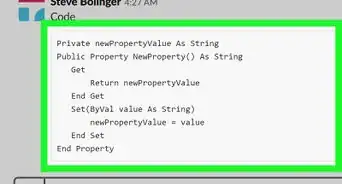
This wikiHow teaches you how to prevent previews of shared URLs from appearing in your team’s Slack workspace. You'll need to sign into Slack on a computer to change this setting. (Related: to disable preview for a single message you're sending, surround the URL with backticks to turn it into a code block).
Steps
-
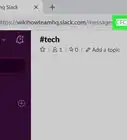
1Open Slack. You can do this by visiting your team’s URL in any web browser, such as Chrome or Safari. If you have the desktop app, open it by clicking Slack in the Applications folder on a Mac, or in the Start/Windows menu on a PC.
-
2Click your workspace name. It’s at the top-left corner of Slack.
-
3Click Preferences.
-
4Click Messages & Media. It’s on the left side of the screen.
-
5Uncheck the box next to “Show text previews of linked websites.” Once the check is removed from the box, link previews will be disabled across the enter team.



About This Article

1. Open Slack on a computer.
2. Click the workspace name.
3. Click Preferences.
4. Click Messages & Media.
5. Uncheck “Show text previews of linked websites.”