X
wikiHow is a “wiki,” similar to Wikipedia, which means that many of our articles are co-written by multiple authors. To create this article, volunteer authors worked to edit and improve it over time.
This article has been viewed 28,802 times.
Learn more...
Opera's new update provides a new screenshot feature. So, you can take screenshots of any web pages without using an external tool. Using this screenshot tool is very easy. Learn how to do it!
Steps
-
1Open Opera browser on your PC. Make sure that you are using the latest version of Opera.
-
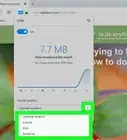
2Open the screenshot tool. Click on the Opera icon in the corner and select Snapshot from the list.
- Press Ctrl+Shift+5 to open the snapshot tool more quickly.
-
3Capture your screen. Click on the Capture full screen button for a full-screen snapshot. As an alternative, select your window by cropping. Click on the Capture button.
-
4Save your screenshot. Click on the Save image from the pop-up window and save it to your system. Done!


Community Q&A
-
QuestionWhere is it saved on a Mac?
 ParodyStarCommunity AnswerIt is saved either in your downloads folder, or more commonly on the desktop. It really depends on where you designated it to be saved, because usually Opera asks you the first time you take a screenshot.