This article was co-authored by wikiHow Staff. Our trained team of editors and researchers validate articles for accuracy and comprehensiveness. wikiHow's Content Management Team carefully monitors the work from our editorial staff to ensure that each article is backed by trusted research and meets our high quality standards.
The wikiHow Tech Team also followed the article's instructions and verified that they work.
This article has been viewed 3,078 times.
Learn more...
This wikiHow teaches you how to switch to a different Google account on YouTube Music without signing out of your current one, using a desktop internet browser. Once you're signed in to multiple Google accounts, you can easily switch between different accounts from your profile menu.
Steps
-
1Open YouTube Music in your browser. Type https://music.youtube.com into the address bar, and press ↵ Enter or ⏎ Return on your keyboard.
-
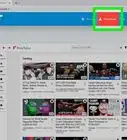
2Click your avatar on the top-right. You'll find a thumbnail of your profile picture in the upper-right corner of the page. It will open your account menu in a drop-down.
- If you're not signed in, you'll see a blue SIGN IN button here.
-
3Click Switch account on the menu. This will open a list of all the Google accounts you're signed in on this computer.
-
4Click on the account you want to sign into. If you're already signed in to another Google account on your computer, you'll see it on the Switch account menu.
- If you see your account on the drop-down list, just click on it to switch accounts.
-
5Click Add account on the menu to add a new account. This option is listed next to a figurehead and a "+" icon at the bottom of the drop-down menu. It'll open the Google sign-in panel on a new page.
-
6Login to the Google account you want to use if prompted. When you sign in, you'll automatically be redirected back to YouTube Music.
- If you have other Google accounts saved on this computer, click on it on the sign-in page, and enter your password to sign in.
- If you don't see your account, sign in with your email or phone and your password.




About This Article

1. Open YouTube Music.
2. Click your avatar on the top-right.
3. Click Switch account.
4. Select an account, or click Add account.
5. Sign in to your other account.