X
This article was co-authored by wikiHow Staff. Our trained team of editors and researchers validate articles for accuracy and comprehensiveness. wikiHow's Content Management Team carefully monitors the work from our editorial staff to ensure that each article is backed by trusted research and meets our high quality standards.
This article has been viewed 270,931 times.
Learn more...
WhatsApp allows you to strikethrough text in your messages. This is a great way to show emphasis when changing or correcting someone's message. Simply add a ~ to strikethrough your text.
Steps
Method 1
Method 1 of 2:iOS
Method 1
-
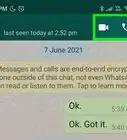
1Open WhatsApp.
-
2Tap CHATS. It's along the bottom of your screen.
-
3Tap the conversation you wish to strikethrough text in.
-
4Tap the text field. This is at the bottom of the screen. Tapping it will open up the keyboard.
-
5Type your message up until the point where you wish to start the strikethrough.
-
6Add a ~. This is the beginning of the strikethrough tag.
- On an iOS device, the ~ is found by tapping the 123 button or the .?123 button, then the #+= button. Tap the ~. It is the fourth button from the left on the second row of buttons.
-
7Type the section you wish to strikethrough. Do not enter a space between the ~ and the first letter of the section you wish to strikethrough.
-
8Add an ~ at the end of the section you wish to strikethrough. This ends the strikethrough tag.
- Do not enter a space between the end of the strikethrough and the ~. The text between the ~ will now appear with a line through it in the textbox.
-
9Continue typing the rest of your message.
-
10Tap the send arrow. The message will appear in the conversation history. The text will appear with a line through it without the ~ at either end of the section.


Method 2
Method 2 of 2:Android
Method 2
-
1Open WhatsApp.
-
2Tap CHATS. It's along the top of your screen.
-
3Tap the conversation you wish to strikethrough text in.
-
4Tap the text field. This is at the bottom of the screen. Tapping it will open up the keyboard.
-
5Type your message up until the point where you wish to start the strikethrough.
-
6Add a ~. This is the beginning of the strikethrough tag.
- On an Android device, the ~ is found by tapping Sym at the bottom left of the screen, then 1/2. Tap the ~. It is the second button from the left on the second row of buttons.
-
7Type the section you wish to strikethrough. Do not enter a space between the ~ and the first letter of the section you wish to strikethrough.
-
8Add an ~ at the end of the section you wish to strikethrough. This ends the strikethrough tag.
- Do not enter a space between the end of the strikethrough and the ~. The text between the ~ will now appear with a line through it in the textbox.
-
9Continue typing the rest of your message.
-
10Tap the send arrow. The message will appear in the conversation history. The text will appear with a line through it without the ~ at either end of the section.


Community Q&A
-
QuestionWhat if I want a word to be ~surrounded~ by wavy dash without the strike through? Is it possible to remove the feature?
 X_IamKingBGCommunity AnswerIt is not possible to remove the feature, but you can add a space between the wavy dash and text to type something without the feature.






About This Article

wikiHow Staff
wikiHow Staff Writer
This article was co-authored by wikiHow Staff. Our trained team of editors and researchers validate articles for accuracy and comprehensiveness. wikiHow's Content Management Team carefully monitors the work from our editorial staff to ensure that each article is backed by trusted research and meets our high quality standards. This article has been viewed 270,931 times.
How helpful is this?
Co-authors: 6
Updated: April 14, 2021
Views: 270,931
Categories: WhatsApp