This article was written by Nicole Levine, MFA. Nicole Levine is a Technology Writer and Editor for wikiHow. She has more than 20 years of experience creating technical documentation and leading support teams at major web hosting and software companies. Nicole also holds an MFA in Creative Writing from Portland State University and teaches composition, fiction-writing, and zine-making at various institutions.
The wikiHow Tech Team also followed the article's instructions and verified that they work.
This article has been viewed 1,597 times.
With the release of iOS 13, the iPhone and iPad Messages app now allows you to create and manage a public profile similar to those you'd find in social messaging apps. This wikiHow teaches you how to share your display name and profile photo with your contacts in on your iPhone or iPad.
Steps
-
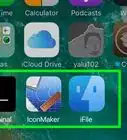
1Open the Messages app. It's the green icon containing a white chat bubble. You'll typically find it at the bottom of the home screen.
- You'll be prompted to set up a profile automatically after updating to iOS 13. If you skipped creating a profile during setup, you'll be prompted to create one in a few moments.
- It is not possible to share your Messages profile with Android users.
-
2Tap the ... menu. It's the three dots near the top-right corner of the screen.Advertisement
-
3Tap Edit Name and Photo. It's on the menu at the bottom of the screen.
- If you haven't set up a profile, follow the on-screen instructions to select a photo and add your display name. Then, skip to Step 5 to share.
-
4
-
5Select who to share with automatically. You have two sharing options:
- If you want to automatically update the way your name and profile photo appear on all of your contacts' phones or tablets, tap Contacts Only.
- If you'd prefer sharing this information on an individual basis, tap Always Ask instead.
-
6Tap Done to save your changes. It's at the top-right corner of the screen.
- If you just created your profile for the first time, this option appears at the bottom.
-
7Share your profile with one person. If you chose Always Ask for profile sharing, you can share your contact info with contacts in the Messages app. To do so, tap a conversation with that person in Messages, then tap Share at the top of the screen.Advertisement








About This Article

1. Open Messages.
2. Tap the three-dot menu.
3. Tap Edit Name and Photo.
4. Toggle on the switch.
5. Choose who to share with.