X
wikiHow is a “wiki,” similar to Wikipedia, which means that many of our articles are co-written by multiple authors. To create this article, 10 people, some anonymous, worked to edit and improve it over time.
This article has been viewed 100,442 times.
Learn more...
Imagine your character is teabagging someone and you want to capture it for all eternity. With the PlayStation 4, you can! You can capture screenshots and videos mid game, and share them with friends and frenemies alike. You can share via the PlayStation network, but also on Facebook, Twitter, Twitch or Ustream. Here's how it works!
Steps
Part 1
Part 1
-
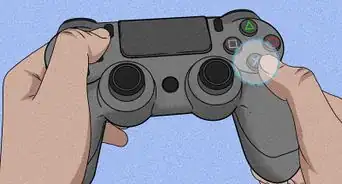
1Open the menu. Press the SHARE button for a split second.This will bring up the Share menu on the screen in front of you while simultaneously saving a video and taking a screenshot of whatever is happening in your game
- Use the short-tap function only when you don't mind stopping in the middle of a game to edit or upload your stuff.
-
2Take a screenshot. Hold down the SHARE button for over a second. This saves a screenshot without interrupting your game, bringing up any menus or recording any video clips.
- Look for the little camera icon at the top right of your screen to confirm the shot was captured.
Advertisement -
3Make a video clip. Double-tap the SHARE button to trigger the start of a video clip. This lets you begin recording a video in real time while you are playing. Tap SHARE once more when you are ready for your recording to stopAdvertisement


Part 2
Part 2 of 3:Sharing Screenshots
Part 2
-
1Find the destination folder. Locate the folder on your hard drive which stores all the screenshots you take. You can find this by going to the function screen, selecting your profile, and clicking on "Captures".
- This folder also holds all your videos.
-
2Tap share. Press the SHARE button for a split second. This action opens up the Share menu.
-
3Select "Upload". Select the "Upload Screen Shot" option. Then choose the screenshot you would like to share.
-
4Choose your options. Follow the menu to your selection of online services if more than one is available
-
5Log-in as necessary. Confirm that your console is logged in to each of the services you wish to use for sharing.
-
6Add some finishing touches. Include a clever comment if you wish. Finish the job by selecting "Share".
-
7Use the messaging service. You may also share your screenshots and videos with friends on the PlayStation Network through the built in Messaging service.Advertisement


Part 3
Part 3 of 3:Sharing Videos
Part 3
-
1Record your video. Record the video you wish to share using the method described in Part 1, Step 3.
-
2Tap Share. Press the SHARE button for a split second. Oh look! There's the Share menu.
-
3Choose "Upload". Pick "Upload Video" from the share menu. Choose your favorite clip from the list.
-
4Change your settings. Tweak your video editing at this time if needed. Once you get the hang of capturing video in real time, this should become less necessary.
-
5Choose your service. Choose your favorite media streaming outlet from the list of internet services. Again, make sure you are logged in to all of them before attempting to upload.
-
6Add finishing touches. Add a snarky caption or whatever you want and select "Share". Now the whole world will know how awesome you are!Advertisement


Community Q&A
-
QuestionCan everyone see the screenshots that I upload?
 Community AnswerIf your account is public, yes. Otherwise only your friends, followers and subscribers can see them.
 -
QuestionCan I send a recorded video to a friend via PS4?
 Community AnswerNo. You can only send pictures or screenshots through PS4 messages. Videos can be uploaded to YouTube, and you can share the link with your friend.
 -
QuestionHow do I send videos to my friends?
 Community AnswerYou can upload it to YouTube and share the link with your friends.
Warnings

References
About This Article
Advertisement