wikiHow is a “wiki,” similar to Wikipedia, which means that many of our articles are co-written by multiple authors. To create this article, 20 people, some anonymous, worked to edit and improve it over time.
This article has been viewed 405,136 times.
Learn more...
A walkthrough of wireless (IEEE 802.11 also known as WiFi) home networking with Linux.
Steps
Most wireless adapters are not designed for use in Linux and depend on non-free proprietary drivers and firmware which inevitably leads to problems. There has been a significant effort by the Linux community and some manufacturers to improve this situation and most recently released Linux distributions will support a significant number of wireless cards.
The Ubuntu Wifi Documentation is a good, and frequently updated, guide to what cards are supported on recent Ubuntu versions (recent versions of other distributions should have similar levels of support). It also lists cards which have Free Software drivers - for users who have a philosophical (or other) objection to closed-source drivers in their kernel.
Method 1
Method 1 of 3:Set up your new router
-
1Plug your router into your internet socket if you want to share your internet.
-
2Plug your router into your PC with an ethernet cable.Advertisement
-
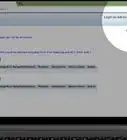
3Go to your browser and type in the address "http://192.168.0.1" or whichever address the router's web server is listening.
-
4Enter your username and password from your router (often "admin" and "admin") then your internet service provider.
-
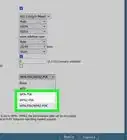
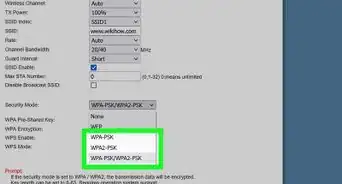
5Enable wireless and set your encryption (WEP or WPA) and type a memorable passkey.Advertisement


Method 2
Method 2 of 3:Detecting your wireless adapter
-
1Your wireless adapter should be detected automatically by your distribution and should be available in your distribution's network config tools (as of early 2012 most distributions use Network Manager). Only if the card is *not* detected, go through the following troubleshooting steps:
-
2Type iwconfig into the terminal to see what wireless network interfaces have been detected.
-
3Type sudo lshw (or lspci or lsusb) to list hardware and get details on the chipset that your card uses. Try searching the Internet or posting in the help forums for your Linux distribution to see if there's support for the chipset your card uses.
-
4If you're using Linux Mint, try MintWifi.
-
5You may need to use a ndiswrapper and your Windows driver, look up the ndis wrapper documentation or ask for help in the forums/mailing lists for your distribution.Advertisement


Method 3
Method 3 of 3:Connecting to a network
-
1If your distribution is using NetworkManager there should be an icon near the clock which you can click on.
-
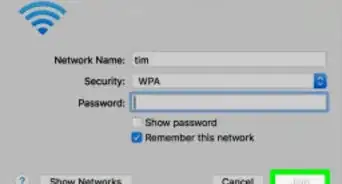
2Choose your "Encryption" (WEP or WPA) and enter your passkey.
-
3If your distribution is not using NetworkManager you may need to look up its documentation or ask for help in it its forums.Advertisement


Community Q&A
-
QuestionIs there any software for Linux to use in a laptop as a WiFi signal-booster/repeater?
 Community AnswerThere is most likely no such software, as you wouldn't regularly find booster/repeater hardware inside of a device which uses Linux.
 -
QuestionHow can I update my Android App?
 Community AnswerUpdating applications is done from Play Store, where app initially downloaded from. If app wasn't downloaded from play store but from Unknown Source or unofficial store user can check the available versions from that source.Note: Avoid downloading from "Unknown Source" or external store. File you download may be modified and can gain access to critical/personal data on the device.
-Connection-Step-12-Version-5.webp)


-Connection-Step-12-Version-5.webp)