X
wikiHow is a “wiki,” similar to Wikipedia, which means that many of our articles are co-written by multiple authors. To create this article, volunteer authors worked to edit and improve it over time.
This article has been viewed 77,443 times.
Learn more...
VMware Tools is a necessity while working inside of the VMware application. It provides increases in productivity by using features such as a fitted virtual machine window inside the application, fluidity between the VMware interface and the virtual machine itself, and others.
Steps
-
1Load VMware. Open the VMware application and power on your virtual machine with Linux operating system.
-
2Select VMware Tools. To begin, open the "VM" tab of the VMware application itself (not Linux) and select "Install VMware tools."Advertisement
-
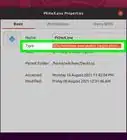
3Find a volume on your desktop named "VMware Tools". Open this by double-clicking, and inside you should see 2 items. A "manifest.txt" and a .tar.gz file. Drag the .tar.gz file to your desktop for easy access. Your screen should now look like this.
-
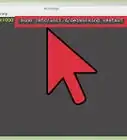
4Open the Working Directory. Now, we will open the terminal (Applications > System Tools > Terminal). The following are commands to install VMware Tools and need to be typed accurately, so be careful. All commands will be put in quotations. Start with the command "cd Desktop" and press enter. This will make our working directory on the Desktop where we have the VMware tools volume.
-
5Unpack it. Now type the command "tar -zxvf VM*" and press enter. You will see a lot of output on your screen, and it will run for a few seconds. Do not try to interrupt it, it is simply unpacking the VMware Tools files we need to continue.
-
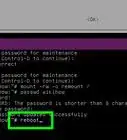
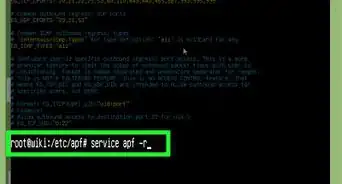
6Log in as Root User. Once your prompt returns (you see the $) type "su root" and press enter. This is logging us in as the root user, or superuser of the system. It will then ask you for the root password of the Linux system. The prompt won't display your the characters you type, so you may make a typo like seen in the visual. Enter your root password and press enter. You will then see your prompt return with a # instead of a $.
-
7Run the Installation. Now type "./vm*/vm*" and press enter. This runs the installation of VMware Tools. The prompt will ask you various questions. Accept the default (ENTER key) for all questions EXCEPT for the following two questions. Searching for GCC Would you like to change it? Answer NO. Searching for valid kernel header path Would you like to change it? Answer NO. Only press enter once and wait for a new question to come up, or you will end up pressing enter for more than you intended. If successful you should see the following on your prompt.
-
8Clean Up. Once your prompt returns type "exit" and then press enter. Now type "rm -rf VM* vm*" and press enter. This will remove the installation files that you do not require any more. Now type "exit" again and press enter to close your terminal.
-
9Go to the VMware application window and click View > Autofit Window > Autofit Guest.
-
10Restart Linux. Now, restart your Linux operating system using System > Shut down, not through closing the VMware application. Shutting down through the virtual machine first is the safest way to restart or end your session.
-
11Check your work. Now power on your virtual machine again and your screen will look the same as the picture below. i.e. fitted window. You will also notice the fluidity between the VMware interface and the virtual machine, such as the mouse and copy/pasting.
-
12Congrats! You have successfully installed VMware Tools.Advertisement


Community Q&A
-
QuestionI get the following message when installing VMWare tools: "If you wish to have shared folders, you can install the driver by running vmware-config-tools.pl again after making sure that gcc, binaries, make and the kernel sources for your running kernel are installed on your machine. These packages are available on your distribution's installation CD." What does this mean, and what do I do to fix it?
 Living ConcreteTop AnswererThis means that you must do some additional set up in order to have folders that are shared between the host machine and the virtual machine. The prerequisites that it listed (make, gcc, kernel sources) are commonly available for most distributions from a package repository or the installation CD. Downloading these tools will depend on your Linux distribution, so you will need to check out the help files or manual for whichever Linux distribution you are installing VMWare on. After you have installed the prerequisite programs, you will need to use perl to run the vmware-config-tools.pl file.
 -
QuestionI get the message "The vmxnet driver is no longer supported on kernel 3.3 and greater. Please upgrade to a newer virtual NIC." How do I do this upgrade?
 SomoneCommunity AnswerYou have to go to Update Manager, select the kernel updates and update them. If they do not appear, then go to Edit > Preferences > Levels and check the level 4 and 5 "Visible" boxes. Click Apply, then click Refresh. Select any kernel updates and update them.
Warnings
- This article assumes you are running a working virtual machine of a Linux operating system. If you are not, you may need to find another article detailing how to load a virtual machine inside of VMware.Thanks!
- You will need to know the root password of your Linux system in order to install VMware Tools.Thanks!
Advertisement
Things You'll Need
- Personal Computer
- VMware application
- Working virtual machine running a Linux Operating system
About This Article
Advertisement