X
This article was co-authored by wikiHow Staff. Our trained team of editors and researchers validate articles for accuracy and comprehensiveness. wikiHow's Content Management Team carefully monitors the work from our editorial staff to ensure that each article is backed by trusted research and meets our high quality standards.
The wikiHow Tech Team also followed the article's instructions and verified that they work.
This article has been viewed 665,478 times.
Learn more...
This wikiHow teaches you how to rotate an object in Adobe Photoshop for Mac or Windows.
Steps
-
1Open or create a Photoshop file. To do so, double-click on the blue app icon that contains the letters "Ps," then click on File in the menu bar at the top of the screen, and:
- Click on Open... to open an existing document; or
- Click on New... to create a new document.
-
2Click on a layer. In the "Layers" menu in the lower-right corner of the screen, click on the layer that contains the object you want to rotate.
- If you don't see the "Layers" menu, click on Windows in the menu bar at the top of the screen, then click on Layers. The "Layers" menu window will appear in the lower-right corner of the photoshop window.
Advertisement -
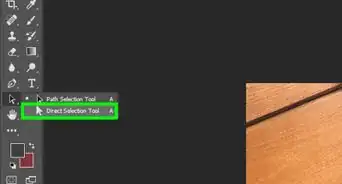
3Click on the Quick Select Tool. It's the paintbrush icon next to a dotted outline, near the top of the toolbar on the left side of the window.
- If you don't see the Quick Select Tool, long-click on the Magic Wand Tool to open a menu that contains the Quick Select Tool.
-
4Select an object. Use the Quick Select Tool to highlight the object you want to rotate.
- If you want to rotate the entire layer, you need not select anything.
-
5Click on Edit. It's in the menu bar at the top of the screen.
-
6Click on Transform. It's in the middle of the drop-down menu.
-
7Click on Rotate 180° to turn the object or layer upside down.
-
8Click on Rotate 90° CW to turn the bottom of the object or layer upward and to the left.
-
9Click on Rotate 90° CCW to turn the bottom of the object or layer upward and to the right.
-
10Click on Rotate to rotate the object freely. A box with eight small squares will surround your selection.
- Click and hold on one of the small squares and use the on-screen pointer to rotate the object.
- The degrees of rotation will appear in a small box above the pointer as you rotate the object.
-
11Press ⏎ Return when you're satisfied with the rotation.Advertisement


Community Q&A
-
QuestionHow do I rotate a picture?
 Community AnswerTo rotate the image and layer together, go up to the menu bar > select "image" > "image rotation" > desired rotation.
 -
QuestionHow do I rotate and format text?
 Community AnswerUse the transform tools, use Ctrl+T, then take the cursor outside of the box. You can rotate it by moving the cursor.
Things You'll Need
- Adobe Photoshop



-Step-9.webp)


About This Article

wikiHow Staff
wikiHow Staff Writer
This article was co-authored by wikiHow Staff. Our trained team of editors and researchers validate articles for accuracy and comprehensiveness. wikiHow's Content Management Team carefully monitors the work from our editorial staff to ensure that each article is backed by trusted research and meets our high quality standards. This article has been viewed 665,478 times.
How helpful is this?
Co-authors: 15
Updated: June 29, 2021
Views: 665,478
Categories: Featured Articles | Adobe Photoshop
Article SummaryX
1. Click a layer.
2. Click the Quick Select tool.
3. Click Edit.
4. Click Transform Path.
5. Select a rotate option.
Did this summary help you?
Advertisement