wikiHow is a “wiki,” similar to Wikipedia, which means that many of our articles are co-written by multiple authors. To create this article, volunteer authors worked to edit and improve it over time.
The wikiHow Tech Team also followed the article's instructions and verified that they work.
This article has been viewed 60,505 times.
Learn more...
Restarting/rebooting Windows 10 closes all apps, shuts down Windows, and turns it back on. Sometimes, this can be very helpful in speeding up your device (especially after heavy use) since the memory (RAM) is cleared with every restart.[1] This article explains multiple different methods of restarting Windows 10.
- Before you start: Save any unsaved work in open apps. Performing a restart will close open apps, and any unsaved work since your last save opportunity will be discarded and most likely lost.
Steps
Method 1
Method 1 of 5:Using the Start Menu


Method 2
Method 2 of 5:Using the Power User Menu
-
1Launch the Power User menu. Press the ⊞ Win+X keys together.[2]
- Alternatively, right-click the Start button. Touchscreen device users can hold down and release.
-
2Hover over/select Shut down or sign out. This option is located second from the bottom. Choosing this will prompt a submenu to appear to the right of the main context menu.
- You can also press the U keyboard key.
-
3Click Restart. Pressing the R keyboard key will perform the same action as clicking Restart.


Method 3
Method 3 of 5:Using the "Shut Down Windows" Dialog Box
-
1Navigate to the desktop. Press ⊞ Win+D simultaneously. There are other different ways of doing this:
- Close all open apps. Use the ✕ button.
- Clicking the very bottom-right of the screen, on the taskbar.
-
2Open the "Shut Down Windows" dialog box. Press Alt+F4 together.
- Pressing the keys together while an app is displayed will cause the window to close.
-
3Click the dropdown menu. It's right below the "What do you want the computer do do?" line of text.
-
4Choose the Restart option.
-
5Confirm the restart. Press OK or hit ↵ Enter.


Method 4
Method 4 of 5:Using Ctrl + Alt + Del


Method 5
Method 5 of 5:Using the Command Prompt
-
1Open the Command Prompt. Press ⊞ Win+X and choose Command Prompt. You can also use the C key.
- You can also press ⊞ Win+R, type cmd, and hit ↵ Enter or click OK.
-
2
-
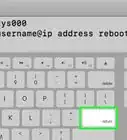
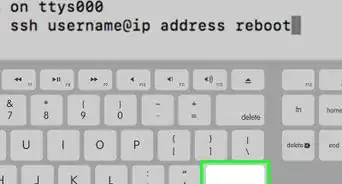
3Hit the ↵ Enter key. This will submit the command.
-
4Dismiss the notification. You'll get a notification telling you that you'll be signed out in less than a minute. Click Close to dismiss it.


Community Q&A
-
QuestionI tried the 3rd option but it isn't working and my laptop was still on. What can I do?
 Community AnswerTry again and if it still doesn't work, try one of the other options.
Things You'll Need
- Device running Windows 10










References
- ↑ https://www.techwalla.com/articles/how-to-clear-random-access-memory-ram-in-windows
- ↑ https://www.lifewire.com/what-is-the-power-user-menu-2625968
- ↑ https://its.uiowa.edu/support/article/109196
- ↑ http://www.thewindowsclub.com/abort-system-shutdown-windows
- ↑ https://www.techopedia.com/definition/7520/hard-reboot
- http://home.bt.com/tech-gadgets/computing/windows-10/how-to-restart-windows-10-and-whatever-happened-to-safe-mode-11364000631724 — Tips
About This Article
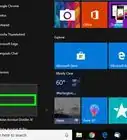
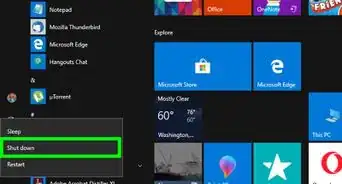
1. Click the Start button (bottom-left). More ↓
2. Click the Power icon. ↓
3. Click Restart. ↓