X
This article was co-authored by wikiHow Staff. Our trained team of editors and researchers validate articles for accuracy and comprehensiveness. wikiHow's Content Management Team carefully monitors the work from our editorial staff to ensure that each article is backed by trusted research and meets our high quality standards.
The wikiHow Tech Team also followed the article's instructions and verified that they work.
This article has been viewed 2,052,636 times.
Learn more...
This wikiHow teaches you how to reset a Linksys router using the "Reset" button or the web-based setup page.
Steps
Method 1
Method 1 of 2:Using the Reset Button
Method 1
-
1Power off your computer.
-
2Unplug your router.Advertisement
-
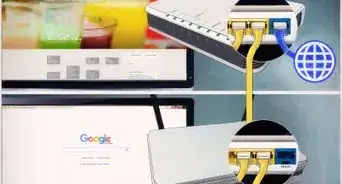
3Wait 60 seconds and plug it back in.
-
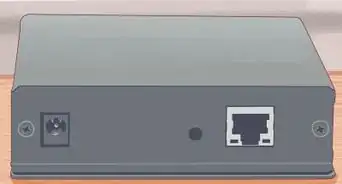
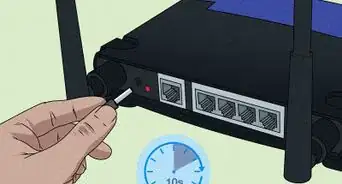
4Locate the small button labeled Reset. It's an insert button that's typically on the back of the router.
-
5Straighten a paper clip. You will use this to press the reset button.
-
6Press and hold the "Reset" button. The "Power" light should blink while you're holding the button.
- Newer models should reset after 10 seconds. On older models, however, you may need to hold the "Reset" button for 30 seconds.[1]
-
7Wait for the "Power" light to stop blinking. When the "Power" light is solid, the reset is complete.
-
8Power on your computer.
-
9Open a Web browser to test for an Internet connection.
- If you still don't have an Internet connection, try restarting your computer.[2]
Advertisement


Method 2
Method 2 of 2:Using the Web-Based Setup Page
Method 2
-
1Go to http://192.168.1.1 in a Web browser. This should connect you to the router.
-
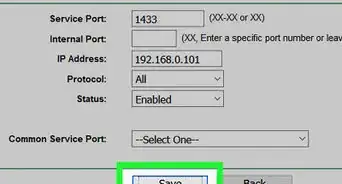
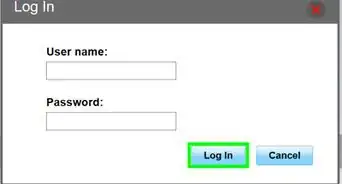
2Enter your username and password in the labeled fields. If you haven't changed them from the factory defaults, leave the username blank and enter admin for the password.[3]
-
3Click Log In.
-
4Click the Administration tab. It's at the top of the window tab.
-
5Click Factory Defaults at the top of the window.
-
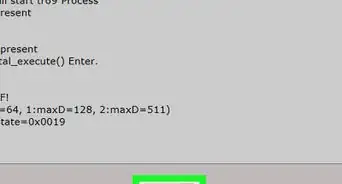
6Click Restore Factory Defaults. It's a button in the center of the window.
-
7Wait for the "Power" light to stop blinking. When the "Power" light is solid, the reset is complete.
-
8Go to a Website in the browser to test for an Internet connection.Advertisement


Community Q&A
-
QuestionCan I just change the password?
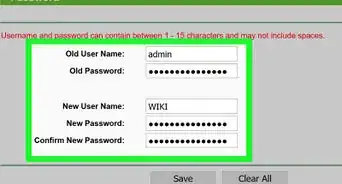
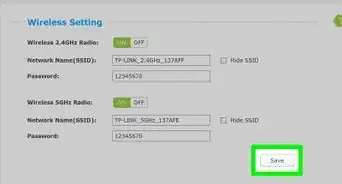
 Community AnswerThe admin password can be changed under "admin" when connecting to the 192.3168.1.1. The wireless password can be set under "Wireless," then "Security."
 -
QuestionMy modem and my computer are working together properly, but my phone will not connect to my router. Do you have any suggestions for me?
 Community AnswerMaybe your parental controls for your mobile are on. This happened all of a sudden to me and I had no clue what was going on, but once I logged into my router it showed me that parental controls were on.
 -
QuestionIs there any other website aside from 192.168.1.1 that should be changed or used to put a password on a router?
 Community AnswerNo. The address is not truly a "website," it's just the IP address to get to your router specifically from your network. Wireless security can be set up by going to the "Wireless" tab and selecting "Security."
Warnings
- Resetting your router should be a last resort. Make sure you first try a power cycle or check your connection by opening a different browser.Thanks!
Advertisement


References
About This Article

wikiHow Staff
wikiHow Staff Writer
This article was co-authored by wikiHow Staff. Our trained team of editors and researchers validate articles for accuracy and comprehensiveness. wikiHow's Content Management Team carefully monitors the work from our editorial staff to ensure that each article is backed by trusted research and meets our high quality standards. This article has been viewed 2,052,636 times.
How helpful is this?
Co-authors: 49
Updated: February 10, 2021
Views: 2,052,636
Categories: Featured Articles | Router Networking Devices
Article SummaryX
1. Log into the router's admin page.
2. Click the Administration tab.
3. Click Factory Defaults.
4. Click Restore Factory Defaults.
Did this summary help you?
Advertisement