X
This article was co-authored by wikiHow Staff. Our trained team of editors and researchers validate articles for accuracy and comprehensiveness. wikiHow's Content Management Team carefully monitors the work from our editorial staff to ensure that each article is backed by trusted research and meets our high quality standards.
This article has been viewed 13,312 times.
Learn more...
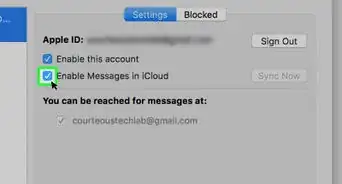
To remove an email address on your iOS device, simply navigate to the Messages settings and click the "i" button next to the email you want to remove. To remove an email from Messages on your Mac, you will need to first navigate to the Apple ID website, then delete the email address from your account.
Steps
Method 1
Method 1 of 2:iOS
Method 1
-
1Tap the "Settings" icon.
-
2Tap Messages. It looks like a green icon with a white speech bubble in it.Advertisement
-
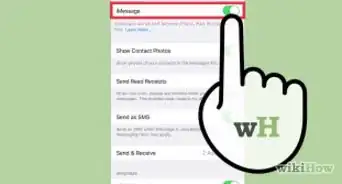
3Tap Send & Receive. This will show you all the contact methods linked to your Messages app on the phone.
- The check marks denote the contact methods you can be reached at.
-
4Tap the i button next to the email you want to remove.
-
5Tap Remove This Email.
-
6Tap Remove Email Address. Doing so will confirm your changes.
- You cannot remove an email address if it is the only one linked with your account.
Advertisement


Method 2
Method 2 of 2:Mac
Method 2
-
1Go to the Apple ID website. Click https://appleid.apple.com/#!&page=signin to get there.
-
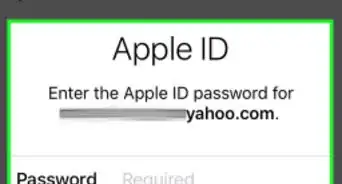
2Type in your Apple ID.
-
3Type in your password.
-
4Press Enter.
-
5Find the "Reachable At" section. It's on the right side of the screen.
-
6Click Edit.
-
7Scroll down to the "Reachable At" section.
-
8Click X next to the email you want to remove.
-
9Click Delete. Doing so will remove the email from your account.Advertisement








About This Article

wikiHow Staff
wikiHow Staff Writer
This article was co-authored by wikiHow Staff. Our trained team of editors and researchers validate articles for accuracy and comprehensiveness. wikiHow's Content Management Team carefully monitors the work from our editorial staff to ensure that each article is backed by trusted research and meets our high quality standards. This article has been viewed 13,312 times.
How helpful is this?
Co-authors: 4
Updated: December 20, 2016
Views: 13,312
Categories: Apple Messages
Advertisement