X
wikiHow is a “wiki,” similar to Wikipedia, which means that many of our articles are co-written by multiple authors. To create this article, 19 people, some anonymous, worked to edit and improve it over time.
The wikiHow Tech Team also followed the article's instructions and verified that they work.
This article has been viewed 223,504 times.
Learn more...
Many know to press Ctrl+Z when they want to "undo" their last entry. But, what if you press "undo" by accident? Fortunately, you can revert to your last entry by using the "redo" command. "Redo" is a fast and easy way to undo the "undo" you did not want to do.
Steps
Method 1
Method 1 of 2:Crtl + Y
Method 1
-
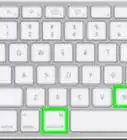
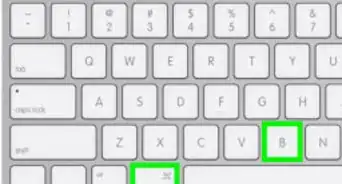
1Hold down the Ctrl key, and press the letter Y on your keyboard.
-
2Confirm the action was executed. Your document or text should have reverted to where it was before you accidentally used "undo."Advertisement
-
3Repeat as needed to go back even further. You can use the "redo" command until all the mistakes you made with the "undo" command have been corrected.Advertisement


Method 2
Method 2 of 2:Alternate Method
Method 2
-
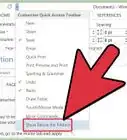
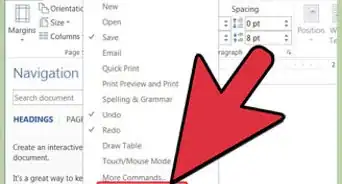
1Add a "redo" button to your Word toolbar. Different versions of Word have different methods of adding toolbar buttons. To learn how to add a "redo" button to your toolbar, click "Help" and search for "customize toolbar."
-
2Use the drop-down "Edit" menu. If you have Microsoft Office 2003, or older, you can access the "redo" command in the "Edit" drop-down menu.
- With the menu, you may also see a list of your recent undo's and redo's.
Advertisement


Community Q&A
-
QuestionWhich key is used for redo?
 Community AnswerPress and hold CTRL, then press Y.











About This Article
Advertisement