This article was written by Nicole Levine, MFA. Nicole Levine is a Technology Writer and Editor for wikiHow. She has more than 20 years of experience creating technical documentation and leading support teams at major web hosting and software companies. Nicole also holds an MFA in Creative Writing from Portland State University and teaches composition, fiction-writing, and zine-making at various institutions.
The wikiHow Tech Team also followed the article's instructions and verified that they work.
This article has been viewed 589,783 times.
Do you need to change your boot device order or reset your system clock? The BIOS or UEFI (the updated version of the BIOS) is the place for you. The BIOS or UEFI controls all of the low-level functions of your PC, and you'll need to access it if you want to make any changes. Accessing the BIOS or UEFI varies from computer to computer, but the basic process is the same. This wikiHow teaches you how to access the BIOS or UEFI on any PC.
Steps
Method 1
Method 1 of 3:Using the Setup Key
-
1Reboot your computer. If you're using an earlier version of Windows or weren't able to use the steps in the Windows 10 or Windows 8 and 8.1 methods, you can enter the BIOS by pressing a special key on your keyboard right after the computer restarts.
- Entering the BIOS requires you to restart your PC. Save your work and shut down other programs before you continue with this method.
-
2Press the Setup key repeatedly. As soon as you see the manufacturer’s logo, press the key indicated on the screen to enter Setup or BIOS. They key you'll need to use varies by manufacturer and model. Keep pressing it over and over again until you enter the BIOS.
- Here's a list of some of the most common setup keys by manufacturer:
- Acer: F2 or DEL
- ASUS: F2 or Del
- Dell: F2 or F12
- HP: ESC or F10
- Lenovo: F2 or Fn + F2
- Lenovo Desktops: F1
- Lenovo ThinkPads: Enter + F1.
- MSI: DEL for motherboards and PCs
- Microsoft Surface Tablets: Press and hold the volume-up button.
- Origin PC: F2
- Samsung: F2
- Sony: F1, F2, or F3
- Toshiba: F2
- If you don’t hit the key in time, Windows will load and you will have to reboot and retry.
Advertisement - Here's a list of some of the most common setup keys by manufacturer:
-
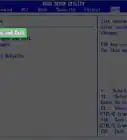
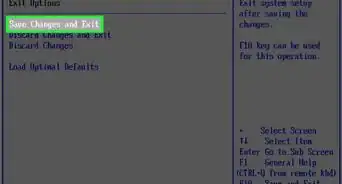
3Navigate the BIOS. As long as you pressed the correct key, the BIOS or UEFI will load. You can use your keyboard to navigate the menus as your mouse will most likely not be working.Advertisement


Method 2
Method 2 of 3:Using Windows 10
-
1Open your Windows Settings . You'll find it in the Start menu. As long as you are able to access your Windows desktop, you should be able to enter the UEFI/BIOS without worrying about pressing special keys at boot time.[1]
- Entering the BIOS requires you to restart your PC. Save your work and shut down other programs before you continue with this method.
-
2Click Update & Security. It's the icon of two curved arrows.
-
3Click the Recovery tab. It's in the left column.
-
4Click Restart Now under "Advanced startup." It's in the right panel, although you may need to scroll down a little to find this button.
-
5Click Troubleshoot on the menu. Additional menu options will appear.
-
6Click UEFI Firmware Settings. It's the icon of a microchip with a gear on it. A confirmation screen will appear.
- If you don't see this option, you'll need to use the Using the Setup Key method.
-
7Click Restart. This will restart your PC into the BIOS/UEFI.
- Once you're in the BIOS or UEFI, use the arrow keys on your keyboard (or your mouse, if it works) to navigate and make menu selections.
Advertisement


Method 3
Method 3 of 3:Using Windows 8 and 8.1
-
1Open the Charms bar. You can do this by holding the mouse cursor at the bottom-right corner of your desktop.
- Entering the BIOS requires you to restart your PC. Save your work and shut down other programs before you continue with this method.
-
2
-
3Click Change PC settings. It's at the bottom of the menu.
-
4Click Update & Recovery. It's at the bottom of the left panel.
- If you're using Windows 8 and haven't updated to 8.1, select General in the left panel instead.
-
5Click Recovery (Windows 8.1 only). It's in the left panel.[2]
-
6Click Restart Now. It's under the "Advanced Setup" header in the right panel.
-
7Click Troubleshoot on the menu. It's the second option.
-
8Click Advanced options. It's the last option.
-
9Click UEFI Firmware Settings. It's the icon of a microchip with a gear on it. A confirmation screen will appear.
- If you don't see this option, you'll need to use the Using the Setup Key method.
-
10Click Restart. This option will restart your PC into the BIOS/UEFI.
- Once you're in the BIOS or UEFI, use your mouse to navigate and make menu selections.
Advertisement


Community Q&A
-
QuestionHow do I reset BIOS with an external monitor?
 Community Answer1: Power on. 2: Press Fn + F8. 3: Press F2 or Delete key depending on your notebook to enter BIOS. (You can do 3 before 2.)
 -
QuestionHow can I get in if I do not know the password?
 Community AnswerYou can't. The BIOS has been designed to require a password to deter potential hackers.
 -
QuestionHow do I enter BIOS on a Windows 7 computer?
 Siemen360Community AnswerThe operating system is irrelevant. Google your PC manufacturer or motherboard to find out what key to press on your keyboard. Once you know it, reboot your PC and press the key to enter the BIOS as soon as your PC powers on and the logo of your manufacturer shows.
 -
QuestionI've already tried the keys F2, F1, F10, F11, Esc and Delete, but I still can't access the BIOS setting. How do I access it?
 Community AnswerYou need to make sure the computers is on beforehand. The power needs to be on for the computer to boot. Then you should try pressing those buttons. Or, you could try and access it through the Windows interface.
 -
QuestionWhat do I do after I have the BIOS number?Community AnswerIf by BIOS number you mean the button you should press, try pressing it on the PCs boot. this will allow you to enter your BIOS. Otherwise, this knowledge is useless and a BIOS number has no purpose.
-
QuestionWhat is the process to upgrade my computer when in the BIOS?
 Community AnswerIf you are talking about updating your OS, you either need to use a USB to boot off and then re-install using the most recent OS, or if using Windows you should be able to go into the update section in their interface. Your BIOS wont help you update you your computer.
 -
QuestionHow do I get a bios password for my Lenovo IdeaPad 100s-14ibr?Community AnswerYou will have to enter your Lenovo bios password. If you did not create the password or are not the owner of the PC, ask the owner (whoever made the bios password) for the password, as it is the only thing that can access the bios.
Warnings
- Don’t change any settings with the BIOS unless you are sure about what you are doing.Thanks!











References
About This Article

1. Open your Windows Settings.
2. Click Update & Security.
3. Click Recovery.
4. Click Restart Now.
5. Click Troubleshoot.
6. Click UEFI Firmware Settings.
7. Click Restart.