X
This article was co-authored by Emily Schmitt. Emily Schmitt is a Technology Writer for wikiHow. Emily is a tech and social media enthusiast who has written dozens of articles on popular apps and services. Emily has experience as an editor of the Davidsonian, the on-campus newspaper at Davidson College. She is currently enrolled at Davidson College, earning her BA in both English and Digital Studies.
Recording shows on YouTube TV is quick and easy. You can record on multiple devices and add shows to your library to record every new episode as it airs. This wikiHow article will teach you how to record new episodes and Live TV on Youtube TV.
Steps
Method 1
Method 1 of 5:Recording New Episodes on YouTube TV
Method 1
-
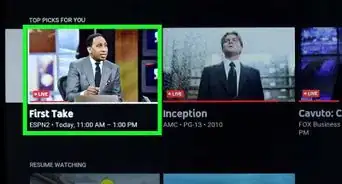
1The recording process is the same on every YouTube TV app. This process will work on any device with the YouTube App including TVs, Rokus, Fire Sticks, laptops, and mobile devices.[1]
- Open the YouTube TV app on your device.
- Click on the search bar in the upper right-hand corner. Type in the name of the show or movie you are looking for.
- Once you find the show or movie that you want to record, click the 'Add' button with a plus sign next to it. This will add it to your Library.
- Once you’ve successfully added the content to your Library, the plus button will turn into a checkmark. YouTube TV will now automatically record every episode of that show or airing of that movie.

Method 2
Method 2 of 5:Recording Live TV & Reruns
Method 2
-
1You can start recording a movie or show when you're watching it live. There are a couple of things to know about recording live content.
- If you add a program to your Library while it’s playing live, your recording will start from the time you added it to your Library.
- If the same episode or movie is re-run later on YouTube TV and the program is still in your Library, the full episode or movie will replace the partial one.[2]

Method 3
Method 3 of 5:Watching Recordings
Method 3

Method 4
Method 4 of 5:Removing Recordings
Method 4
-
1If you don’t wish to record a program anymore, all you have to do is remove the show or movie from your Library.
- Navigate to your Library by clicking on your profile picture and then clicking ‘Library.’
- Select the Remove option next to the program's title for the program you no longer wish to record.
- Your previously recorded programs will be available until they expire.

Method 5
Method 5 of 5:Fixing Playback Errors
Method 5
-
1You may run into general errors called Playback Errors[3] . If you run into a Playback Error on YouTube TV, there are a few things you can do to fix the issue.
-
2A bad internet connection. YouTube TV recommends at least 5 mbps (megabits per second) per device to run smoothly. Make sure your internet is strong and running before you start streaming.
-
3Too many users. YouTube TV supports three streams at a time. If you exceed three streams, you'll get a playback error.
- Be sure to close the YouTube TV app on each device after you're done watching. This will prevent YouTube TV from thinking multiple streams are happening.
-
4Channel errors. Sometimes specific channels will have errors. This is not an issue on your end and there's not much you can do except wait till the channel to get back up.
-
5TV or device is not compatible. YouTube TV is compatible with the latest smart TVs and devices. Be sure your device is compatible with YouTube TV by checking out this list.
-
6Unsupported location. YouTube TV channels vary based on your current location. If you are traveling, especially long distances or internationally, the channel availability might change. You might be geo-locked out of your favorite channels.
-
7Restart your device. A good idea anytime you run into an error on YouTube TV is to try to restart your device. This hard reset will reset YouTube TV and more than likely solve your problem.
- You can also try just quitting the YouTube TV app and reopening the app for a quicker fix.



References
- ↑ https://www.alphr.com/youtube-tv-how-to-record-a-show/
- ↑ https://www.google.com/search?q=how+to+get+to+the+library+menu+in+YouTube+TV&rlz=1C5CHFA_enUS894US894&oq=how+to+get+to+the+library+menu+in+YouTube+TV&aqs=chrome..69i57j33i160.12974j1j7&sourceid=chrome&ie=UTF-8#kpvalbx=_l6NcYfiIIcGx5NoPzvmxQA76
- ↑ https://www.reviews.org/tv-service/youtube-tv-not-working/
- ↑ https://videoconvert.minitool.com/screen-record/how-to-record-on-youtube-tv.html
- ↑ https://streamingclarity.com/youtube-tv-record-single-episode-dvr/
About This Article

Emily Schmitt
Technology Writer
This article was co-authored by Emily Schmitt. Emily Schmitt is a Technology Writer for wikiHow. Emily is a tech and social media enthusiast who has written dozens of articles on popular apps and services. Emily has experience as an editor of the Davidsonian, the on-campus newspaper at Davidson College. She is currently enrolled at Davidson College, earning her BA in both English and Digital Studies.
How helpful is this?
Co-authors: 4
Updated: October 17, 2021
Views: 670
Categories: YouTube