X
This article was co-authored by wikiHow Staff. Our trained team of editors and researchers validate articles for accuracy and comprehensiveness. wikiHow's Content Management Team carefully monitors the work from our editorial staff to ensure that each article is backed by trusted research and meets our high quality standards.
This article has been viewed 100,352 times.
Learn more...
The WhatsApp messaging app allows you to communicate with other WhatsApp users via voice, video, and text messaging. This wikiHow shows you how to record your screen activity during a WhatsApp video call.
Steps
Part 1
Part 1 of 2:Activating Screen Recording in iOS
Part 1


Part 2
Part 2 of 2:Recording a WhatsApp Video Call
Part 2
-
1Press the Home button. This is the physical button below your device's screen. Pressing it returns you to your device's home screen.
-
2Tap the WhatsApp icon to open it. The icon looks like a white phone handset inside a white speech bubble on a green background.
- If you can't find the WhatsApp icon, swipe right on your device's home screen and type "WhatsApp" in the search bar at the top of the screen. Tap the WhatsApp icon when it appears in the search results.
-
3Tap Calls. The Calls icon, which looks like a phone, appears on the bottom of the screen.
-
4Tap the New Call icon in the upper right corner of the screen. The icon looks like a phone with a small plus sign near it.
-
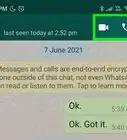
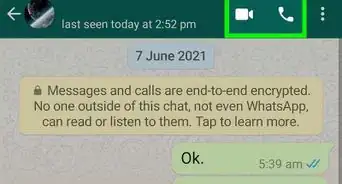
5Tap the video camera icon next to the contact you wish to call. WhatsApp makes a video connection to this contact. [1]
-
6
-
7
-
8Tap the microphone icon near the bottom of the screen. This turns the microphone from off to on, allowing Screen Recording to capture audio as well as video.
-
9Tap Start Recording. After three seconds, Screen Recording begins recording all activity on your screen.
- A red banner appears at the top of your screen when Screen Recording is active.
-
10Tap the red banner when you are ready to end the recording. Your iPhone prompts you to confirm that you wish to stop Screen Recording.
-
11Tap Stop to end the recording session.
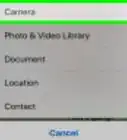
- You can find your completed Screen Recording by tapping the Camera app and tapping your Photo Library.[2]






About This Article

wikiHow Staff
wikiHow Staff Writer
This article was co-authored by wikiHow Staff. Our trained team of editors and researchers validate articles for accuracy and comprehensiveness. wikiHow's Content Management Team carefully monitors the work from our editorial staff to ensure that each article is backed by trusted research and meets our high quality standards. This article has been viewed 100,352 times.
How helpful is this?
Co-authors: 5
Updated: March 29, 2019
Views: 100,352
Categories: WhatsApp