X
This article was co-authored by wikiHow Staff. Our trained team of editors and researchers validate articles for accuracy and comprehensiveness. wikiHow's Content Management Team carefully monitors the work from our editorial staff to ensure that each article is backed by trusted research and meets our high quality standards.
The wikiHow Tech Team also followed the article's instructions and verified that they work.
This article has been viewed 610,830 times.
Learn more...
This wikiHow will teach how to reboot an iPad, as well as reset an iPad that you are locked out of due to a forgotten passcode.
Steps
Method 1
Method 1 of 3:Rebooting a Frozen or Misbehaving iPad
Method 1
-
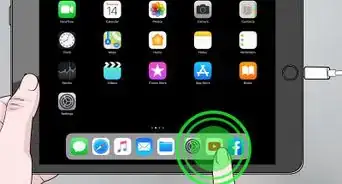
1Find the Power and the Home buttons. You'll find the Power button along the top edge of the iPad, and the Home button is in center at the bottom.
-
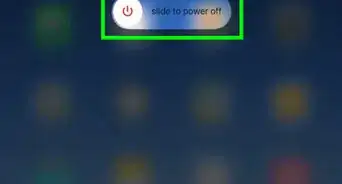
2Press and hold both buttons until you see the Apple logo.
-
3Release the Power and Home buttons. If you hold too long, you'll enter Recovery Mode.
-
4Wait while the iPad continues to boot up. Rebooting this way will typically fix most minor problems your iPad is experiencing, such as connection issues or being unable to charge.


Method 2
Method 2 of 3:Resetting a Disabled iPad (iTunes)
Method 2
-
1Connect your iPad to your computer. If you have forgotten your iPad passcode, you can use iTunes to restore it. This will delete the data, but allow you to access your device again.
- This method only works if you've previously synced your iPad to your computer with iTunes. If you've never synced with iTunes, you can reset using iCloud instead.
-
2Open iTunes on your computer. You must have previously synced your iPad to this computer in order to use iTunes to restore it.
-
3Click the iPad icon in iTunes. You'll see this along the top of window, next to the menu that selects your iTunes library.
-
4Click the Restore iPad button.
-
5Click Restore to confirm.
-
6Wait while your iPad restores. This may take a little while to complete. You can monitor the progress on the iPad's screen.
-
7Swipe to start the setup process.
-
8Tap your language and region options.
-
9Tap the wireless network that you want to connect to.
-
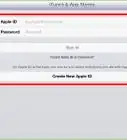
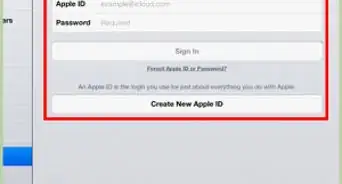
10Sign in with your Apple ID and password. This will restore all of your App Store purchases for your iPad, as well as restore any synced iCloud data like contacts and email.
- If you don't remember your Apple ID or password, you can reset them using the iForgot website.
- If you are being asked to sign in with a previous owner's Apple ID, you'll need to either sign in with their login information or have them remove the iPad from their account at icloud.com/find in any web browser. You won't be able to use the iPad until the previous owner has removed it.


Method 3
Method 3 of 3:Resetting a Disabled iPad (iCloud)
Method 3
-
1Open the web browser on a computer or mobile device. If you are locked out of your iPad because you forgot the passcode, and you've never used iTunes to sync it, you can use iCloud to erase and restore it.
- This will not work if you were not signed into iCloud on your iPad, or your iPad is not connected to a wireless network. If this is the case for you, you'll need to use Recovery Mode to restore the iPad.
-
2Visit the Find My iPhone website. Despite its name, this service works for all iOS devices, including the iPad.
-
3Sign in with your Apple ID and password. If you don't remember your Apple ID or password, you can reset it using the iForgot website.
-
4Click the All Devices menu. You'll see this at the top of the window.
-
5Click your iPad in the list of devices. If your device cannot be located because it is offline, you'll need to use Recovery Mode to restore the iPad.
-
6Click the Erase button. You'll see this in the card with your iPad's details in the corner.
-
7Click Erase. Your iPad will immediately begin erasing and resetting.
-
8Wait while your iPad resets. This may take a few minutes. You can monitor the progress on your iPad's screen.
-
9Swipe the screen to start setting up the iPad.
-
10Tap your desired language and region.
-
11Tap your wireless network. Enter the password if one is required.
-
12Sign in with your Apple ID and password. This will restore your iCloud data on your iPad.
- If you're asked to sign in for a previous owner's Apple ID, you'll need to either sign in with their login information or have them remove the device from their account at icloud.com/find. You will not be able to use the iPad until the previous owner has removed it from their Apple ID.


Community Q&A
-
QuestionMy iPad won't turn on after a reset. It just displays the Apple logo then shuts off. How do I fix this?
 Community AnswerMost likely your iPad has been bricked. You can look online for various methods of unbricking iOS devices. One way is by connecting your device to a computer (if it is a Windows based system, you must have iTunes installed) and seeing if the computer can recognize the iPad. If not, you'll need to bring your device into the Apple store.
 -
QuestionHow do I do a hard reset of my iPad?
 Community AnswerPress the Off button for a long time and press Reset. If it's not there, go to Settings and tap Reset the same way.
 -
QuestionMy iPad is connecting to WiFi but my Facebook and Gmail are not. What can I do?Community AnswerIt may be because of the WiFi you are using. Try turning it off and on, and try again. If it still doesn't work, it might be because Facebook and Gmail are blocked on the WiFi.
-
QuestionMy iPad 2 only has a picture of an iTunes logo and a computer cable when I use the sleep/wake button. How can I clear this without erasing any of the programs?Community AnswerTry holding home and power for a while, then connect to the computer and go into iTunes to try other methods of resets.
-
QuestionHow can I turn off my iPad? It just shows the iTunes sign and a picture of a charger.
 Community AnswerHold the power button for 30 seconds, or until it turns off automatically without the slide shut off screen and just simply keep holding it until it turns on again. The most important part is to not take your finger off the button.
 -
QuestionWhy is it asking for the password if it hasn't been used yet?
 Community AnswerContact Apple and tell them your product has been tampered with and requests a password. They will give you an override code or request that you send it to them and they will refund your purchase or send you an replacement.
 -
QuestionWhat if it is a black and white iPad?Community AnswerThese steps should work regardless of the color of the iPad.
-
QuestionWhat can I do if the sound is not working?Community AnswerRestart your iPad. If the sound still does not work, make an appointment at the Apple store for a consultation.
-
QuestionSiri is stuck on and I cannot get back to my desktop. How do I reboot?Community AnswerPress the home button but if that doesn't work, then hold down the lock button until it says swipe right. Then swipe right and wait for it to turn off. Then press the lock button and wait for it to go back on.
-
QuestionWhy can't my iPad connect to a server?Community AnswerReboot the iPad and try again.








About This Article

wikiHow Staff
wikiHow Staff Writer
This article was co-authored by wikiHow Staff. Our trained team of editors and researchers validate articles for accuracy and comprehensiveness. wikiHow's Content Management Team carefully monitors the work from our editorial staff to ensure that each article is backed by trusted research and meets our high quality standards. This article has been viewed 610,830 times.
How helpful is this?
Co-authors: 11
Updated: December 9, 2019
Views: 610,830
Categories: Ipad
Article SummaryX
1. Press and hold the Power and Home buttons.
2. Release your fingers when you see the logo.
Did this summary help you?