This article was written by Nicole Levine, MFA. Nicole Levine is a Technology Writer and Editor for wikiHow. She has more than 20 years of experience creating technical documentation and leading support teams at major web hosting and software companies. Nicole also holds an MFA in Creative Writing from Portland State University and teaches composition, fiction-writing, and zine-making at various institutions.
This article has been viewed 201,269 times.
You can generally open a PDF on your iPad just by tapping its name on an email message or website. If you're working with a longer PDF file or need to make markings and add bookmarks, you'll need to use the Apple Books app. This wikiHow teaches you how to open and mark up a PDF file using the Apple Books app on your iPad.
Need help creating, merging, or converting PDF files? Try wikiHow's PDF Toolkit, a free and easy-to-use custom tool to help you be more productive with your documents.
Steps
-
1Install the Apple Books app if you don't have it. You can check to see if you have the Books app by searching for it in Spotlight. Just swipe right on the Home screen until the Search bar appears at the top, tap the search bar, and then tap Books. If you see an orange icon with an open book at the top, you already have the app and can skip this step. If not, here's how to get it:
- Open the App Store (the blue icon with a white "A" inside).
- Tap Search (the magnifying glass) at the bottom of the screen.
- Type apple books into the search bar and tap the Search key.
- Tap GET or the cloud icon next to "Apple Books" (the orange icon with a white book inside).
-
2Navigate to the PDF. If the PDF is attached to an email message, open that email message now. If it's on the web, browse to the page where you found it.Advertisement
-
3Tap the PDF. If it's an email attachment, it's probably at the bottom of the message.[1] This opens the file in a simple reader.
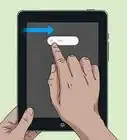
- If you're using Safari, the Mail app, or the Gmail app, the PDF should open in a basic readable format. You can swipe left or right through the file to flip through the pages. If you just need a quick glance at the file, this could be enough for you. If you need to do more, keep reading!
-
4
-
5Scroll right and tap Copy to Books. It's an orange icon in the icon list near the bottom of the screen. This saves the PDF to your library and launches the Apple Books app.
-
6Tap the PDF to open it in Apple Books. This expands the PDF into full-screen mode.
- Now that the PDF is saved to your library, you can view it at any time by tapping the orange Books icon on your home screen and selecting the file.
-
7Swipe right or left through the pages. Each swipe will move you forward or backward one page.
- To view a visual table of contents that lets you quickly switch between pages, tap the PDF once to bring up the toolbar, and then tap the icon of three lines prefaced by three dots near the top-left corner.[2]
- To bookmark a page, tap the screen once, and then tap the bookmark icon at the top-right corner.
-
8Mark up the PDF. To highlight items and/or draw on your PDF, tap the screen once to bring up the toolbar, and then tap the marker icon at the top to open the PDF in Markup. You can use the different pens, highlighters, and tools to add what you wish to the file.
- Tap the undo icon (the curved arrow pointing left inside of a circle) at the top to reverse your changes.
- Tap the back button (the < at the top-left corner) to return to your library. This will save any changes you made in Markup, although you can return to Markup at any point to add or remove markings.
-
9Tap the Share icon to share the file with others. If you need to send the PDF to someone else, you'll need to do so from the Apple Books app. Simply open the PDF in Apple Books, tap the screen once to bring up the toolbar, and then tap the Share icon (the box with an upward-pointing arrow) at the top to bring up the sharing options. Choose any email, messaging, or cloud sharing option to share the file.Advertisement


Community Q&A
-
QuestionWhat do I do if I can see the PDF, but I can't access it?
 Community AnswerLook for a new PDF reader on the App Store that will let you edit the PDF.







References
About This Article

1. Install the Apple Books app.
2. Navigate to the PDF.
3. Tap the PDF to open it in a basic format.
4. Tap the Sharing icon.
5. Swipe across the app icons and tap Copy to Books.
6. Tap the PDF in the Books app.
7. Swipe left and right to move through pages.
8. Tap the PDF to bring up the toolbar.