X
This article was written by Nicole Levine, MFA. Nicole Levine is a Technology Writer and Editor for wikiHow. She has more than 20 years of experience creating technical documentation and leading support teams at major web hosting and software companies. Nicole also holds an MFA in Creative Writing from Portland State University and teaches composition, fiction-writing, and zine-making at various institutions.
The wikiHow Tech Team also followed the article's instructions and verified that they work.
This article has been viewed 5,507 times.
This wikiHow teaches you how to share photo and video Moments on WeChat when you’re using an Android.
Steps
-
1Open WeChat. You’ll typically find the app on your home screen or in the app drawer. Look for the green icon with two white overlapping chat bubbles.
- If you’re not signed in to WeChat, sign in now.
-
2Tap Discover. It’s at the bottom of the screen.
-
3Tap Moments.
-
4Tap the camera icon. It’s beneath your profile photo, right beside the date. A pop-up will appear.
-
5Tap Choose image.
- If you want to take a new photo or video, tap Use Camera instead, then snap or record your Moment.
- If it’s your first time using Moments, you’ll see a welcome pop-up. Read it and tap OK.
-
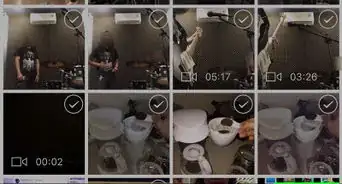
6Tap a photo or video to select it. A check mark will appear at its upper-left corner.
-
7Tap Done. The photo or video will appear in WeChat, ready for editing.
-
8Tap Edit. It’s at the bottom-left corner.
-
9Select an editing tool to add effects. Here’s what they do:
- Pencil: A freehand drawing tool.
- Smiley face: Emoji and stickers.
- T: Type anywhere on the photo or video.
- Checkerboard: Adds a mosaic effect.
- Cropping tool: Crop and resize a photo.
-
10Tap Done. Now you’ll see your photo or video attached to a new post.
-
11Type a message. This is optional, but you can tap Say Something to attach a message to your Moment.
-
12Tap Location to tag your location. If you don’t want people to know where you are, you can skip this step.
-
13Tap Share to to select a privacy setting. Your Moment is set to public by default. To tighten your security, select Private (just you), Share List (just certain friends), or Do Not Share List (excludes certain friends), then tap Done.
-
14Tap Mention to tag a friend. This is optional, but it can be helpful if you want to tag a friend who’s in the photo or video. Your contacts list will appear—tap the contact(s) you want to mention, and then tap OK.
-
15Tap Send. Your new Moment is now live.



About This Article

Nicole Levine, MFA
Tech Specialist
This article was written by Nicole Levine, MFA. Nicole Levine is a Technology Writer and Editor for wikiHow. She has more than 20 years of experience creating technical documentation and leading support teams at major web hosting and software companies. Nicole also holds an MFA in Creative Writing from Portland State University and teaches composition, fiction-writing, and zine-making at various institutions. This article has been viewed 5,507 times.
How helpful is this?
Co-authors: 5
Updated: May 25, 2021
Views: 5,507
Categories: WeChat