X
wikiHow is a “wiki,” similar to Wikipedia, which means that many of our articles are co-written by multiple authors. To create this article, volunteer authors worked to edit and improve it over time.
This article has been viewed 17,408 times.
Learn more...
If you are ordering on Instacart and find that some items you ordered aren't available, you don't have to rely on your Shopper's substitution choices. With this process, you can specify your replacements ahead of time.[1]
Steps
-
1Add your preferred item to add to the order. Before you specify a potential substitute, you'll want to add your first choice to your order, as you typically would. Tap the search box near the top of the screen and type in the product name. Tap the + sign on the top right corner of the item you'd like to purchase, or tap the item itself and adjust the quantity. Then tap the "Add to Cart" button.[2]
- Tap the + button again to purchase additional quantities of the item.
- Repeat for additional items, or tap the cart to continue.
-
2Open your cart. Tap the Shopping cart icon at the top of any Instacart page (mobile interface) or at the top right corner of the website.Advertisement
-
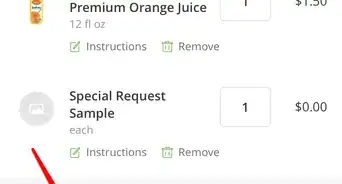
3Tap the "Instructions" button. This should be found underneath the size and title of the item to the left of the "Remove" button.[3]
-
4Tap the "If item is out of stock: Replace with Best Choice" button.
-
5Select "Pick Specific Replacement".[4]
-
6Pick the Replacement item from the list. If the item you want to use as the substitute isn't on the list, run a search for the item using the search box underneath the title for "Possible Replacements". This list will display possible replacements updated as you type.
-
7Tap the "Done" button. If you have additional instructions for your shopper, such as "check the expiration date" or similar, you can type those instructions into the box below "Special instructions for your shopper" before tapping "Done". The "Done" button can be found in the top right corner of the screen.[5]
-
8Check out. Do this just the same way you would do if you were running an order without substitution replacements. This is covered in detail in How to Order on Instacart.If you don't have at least the ten dollar minimum, you won't be able to check out yet - and this will be designated by the greyed out "Checkout" button at the bottom of the cart page.Advertisement









References
- ↑ https://techcrunch.com/2017/10/01/instacart-needs-to-deeply-invest-in-grocers-and-user-personalization-to-survive/
- ↑ https://delivery.publix.com/help/section/360008724892
- ↑ https://www.instacart.com/help/section/360007902831/360039162252
- ↑ https://www.instacart.com/help/section/360007902831/360039162252
- ↑ https://www.freep.com/story/news/local/michigan/2020/05/04/5-things-know-when-you-ordering-groceries-delivery-pickup/3066550001/
About This Article
Advertisement