X
wikiHow is a “wiki,” similar to Wikipedia, which means that many of our articles are co-written by multiple authors. To create this article, volunteer authors worked to edit and improve it over time.
This article has been viewed 30,924 times.
Learn more...
While Ubuntu may not be your operating system of choice, it can be extremely useful in situations where one is unable to boot into his or her Mac or Windows partition. Mounting a regular partition is fairly straightforward in Ubuntu, but mounting a TrueCrypt-encrypted volume can be a little tricky, especially for users not familiar with Ubuntu.
Steps
-
1
-
2Place the CD in your computer's CD drive or insert the USB stick.
-
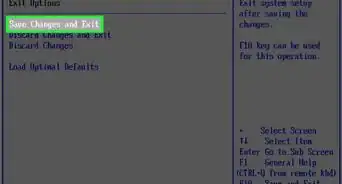
3Make sure your BIOS boot order is set correctly for the method you are using.
-
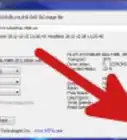
4Boot into Ubuntu. Download the TrueCrypt .tar.gz file for Linux. If you are unable to connect to the Internet, you may have to download the file on a separate computer and place it on a USB stick to transfer it.
-
5Extract the contents of the .tar.gz to a folder.
-
6Open Terminal and navigate to the folder to which you extracted the compressed folder.
-
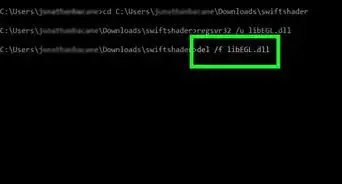
7Enter the following: ./truecrypt-7.1a-setup-x86. Follow the steps to install TrueCrypt.
- The syntax may differ depending on the version of TrueCrypt you downloaded. The command you enter should begin with ./ and end with the name of the file you extracted.
-
8After verifying that TrueCrypt installed correctly, enter the following into Terminal: sudo fdisk -l
-
9Find the partition that contains your Windows installation. It will be under "Device Boot" and look something like /dev/sda1.
-
10Enter the following into Terminal: truecrypt --mount-options=system followed by a space and the address you found in the last step, followed by a space and /media/truecrypt
-
11Enter in the password with which you encrypted the partition.
-
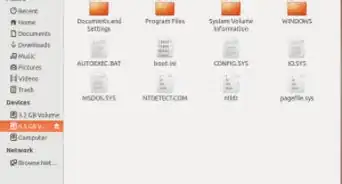
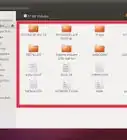
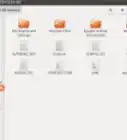
12Your TrueCrypt volume should now show up in the file system and you should be able to access any files you need. Make sure to back them up if your boot files or installation are corrupted!
-
13Unmount the TrueCrypt volume using the TrueCrypt GUI, or by entering the following into Terminal: truecrypt -d /media/truecrypt
- If you get an error that the disk is in use, you can use Fuser -mv /media/truecrypt to list processes using the disk and sudo kill followed by a space and the offending process ID to kill them.


Warnings
- This article is for technically adept users. Data loss may occur if the instructions are not followed properly.Thanks!
- This method will only work for disks encrypted with TrueCrypt. For unencrypted disks, see How to Access Windows Files in Ubuntu.Thanks!