wikiHow is a “wiki,” similar to Wikipedia, which means that many of our articles are co-written by multiple authors. To create this article, volunteer authors worked to edit and improve it over time.
The wikiHow Tech Team also followed the article's instructions and verified that they work.
This article has been viewed 1,858 times.
Learn more...
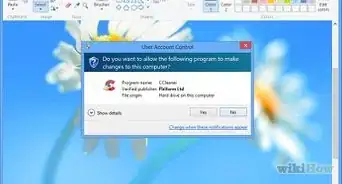
UAC (User Account Control) is a security feature in Windows that prevents programs from getting administrator access without your permission. Although it keeps your computer secure, it's also quite annoying to see it every time some change is made to your Windows computer. But did you know there's a way to disable UAC (it's not a good idea, but it is possible), and even remove the dimming? Also, believe it or not, you can make it even more annoying (this is the most secure option though). If you think that you want to make one of these changes, then read the article below for step-by-step instructions.
Note: You need administrator permissions to make the changes described in this article.
Steps
Method 1
Method 1 of 4:Enable Always Notify
Enabling always notify will set UAC to prompt you whenever you make changes as well as when programs make changes. This setting is the most secure, but it can be annoying.


Method 2
Method 2 of 4:Disable Screen Dimming
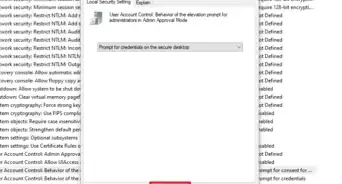
The dimmer screen is called the secure desktop, and it prevents other programs from interacting or modifying the screen. Disabling this feature will reduce the security of your computer since other programs will be able to modify the UAC prompt. It should only be considered if your computer takes a long time to display the UAC dialog. Keep this in mind if you chose this setting.


Method 3
Method 3 of 4:Disable UAC
Warning: This will reduce the security of your computer and could allow viruses to infect it. It may also cause issues with some programs. Disable UAC at your own risk!
-
1
-
2Search for UAC settings. Type User Account Control into the search bar to search for the User Account Control settings, and click the first result.
-
3Drag the slider all the way down. Then click OK.
-
4Click Yes in the User Account Control dialog that appears.
-
5
-
6
-
7Click Restart. Once your computer restarts, User Account Control will be disabled.Advertisement


Method 4
Method 4 of 4:Restore UAC to the Default Setting


Warnings
- Never notify will disable UAC completely. Although this may sound good, it will significantly reduce the security of your computer. And you never know, you may get a virus one day that UAC could have prevented if it wasn't disabled.Thanks!
- Disabling dimming may be a good idea if your computer takes a long time to display UAC, but it also reduces the security of your computer because other programs will be able to modify the UAC dialog. Keep this in mind if you choose this setting.Thanks!
Things You'll Need
- Administrator permissions










References
- https://www.cnet.com/how-to/how-to-run-everything-in-administrator-mode-and-why-you-shouldnt-do-it/
- https://support.microsoft.com/en-us/topic/guided-help-adjust-user-account-control-settings-in-windows-7-and-windows-8-605f891d-42c5-2b93-4b4b-e4c5d4d35f60
- https://docs.microsoft.com/en-us/previous-versions/windows/it-pro/windows-server-2008-R2-and-2008/dd446675(v=ws.10)?redirectedfrom=MSDN