X
wikiHow is a “wiki,” similar to Wikipedia, which means that many of our articles are co-written by multiple authors. To create this article, volunteer authors worked to edit and improve it over time.
This article has been viewed 47,033 times.
Learn more...
The time it takes to download a file can vary greatly depending on your Internet connection speed; waiting for a file to download for too long can get very frustrating. It is important to measure your download speed accurately so you know whether you need a faster Internet connection to reduce download time. There are many websites that offer Internet connection and download speed tests.
Steps
Method 1
Method 1 of 4:CNET Bandwidth Meter
Method 1
-
1Visit the Bandwidth Meter Online Speed Test page on the CNET Reviews website.
-
2Select the location from where you are performing the test. This is important because the measurement can be affected by how the computer is being used.
- �At home" should be selected if you are on a home computer.
- Choosing "at work" indicates the computer is for office use.
- �At school" needs to be chosen for school computers.
- Select "other" if none of the other options apply.
Advertisement -
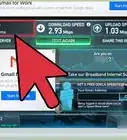
3Watch the 2 speedometers on your screen. The large speedometer shows live speed measurements and the small speedometer shows what percentage of the test has been completed.
-
4Read the line speed result in the box that appears. A higher reading indicates a faster download speed.Advertisement


Method 2
Method 2 of 4:Speakeasy Speed Test
Method 2
-
1Go to the Speakeasy Speed Test page.
-
2Select the city from the list on the side that you are located nearest to. This will trigger the test to begin.
-
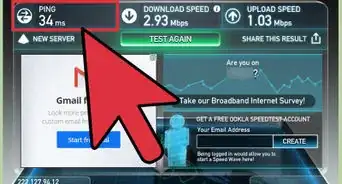
3Wait for the test to complete and your results to appear. The Speakeasy test displays 2 results.
- Download Speed: this is the Internet speed at which files are downloaded to your computer.
- Upload Speed: the speed at which you can upload files at locations on the Internet such as uploading email attachments. This is known as the upload speed.
Advertisement


Method 3
Method 3 of 4:Understanding the Results
Method 3
-
1Measure your download speed a few times to get an average reading. Don't be confused if the results vary each time you perform the test. It is normal for the results to deviate due to the following reasons:
- You might get a low result because your connection is being used by other programs. This does not mean that your connection speed is slower, just that the speed test is not able to connect to your computer with a strong connection. You may want to consider closing other programs that are using the Internet.
- You may experience a slower connection speed temporarily if your Internet service provider is performing scheduled maintenance work.
- The servers might be busy for the website that you are trying to perform the speed test through. This does not mean that you have a slower connection; it means that the website was not able to perform the test as quickly as it should have.

Method 4
Method 4 of 4:Calculating Download Time
Method 4
-
1Open the T1 Shopper website to calculate how much time it would take to download a certain file onto your computer.
-
2Enter the file size in the file size box.
-
3Select the unit in which you have provided the file size. You can select different byte units such as kilobytes or megabytes.
-
4Click on the speed that you have previously measured through the speed test. The resulting time will immediately appear, which is the time it would take to download the file.Advertisement




References
About This Article
Advertisement