X
wikiHow is a “wiki,” similar to Wikipedia, which means that many of our articles are co-written by multiple authors. To create this article, 21 people, some anonymous, worked to edit and improve it over time.
This article has been viewed 160,071 times.
Learn more...
Computers are an essential and ubiquitous part of our everyday lives now. We use them for work, connecting with people, entertainment, art and a host of other things. But when we're using them, we expect them to work fast! Just like your body, a car, or any other working machine, your computer has to be maintained and cared for to be up-to-speed. There's a number of ways to keep your computer at the top of it's game, and you can find them below!
Steps
-
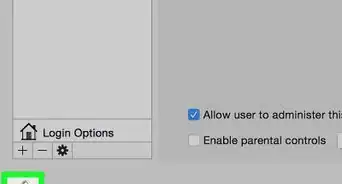
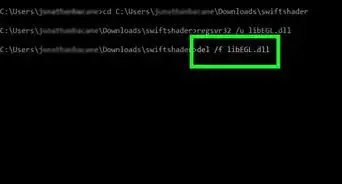
1Consider using the command-line. You can still tweet, instant message, play mp3 (with mplayer), browse the web (with Lynx or Links2), p2p (amulecmd), torrent (rtorrent), image edit (ImageMagick), read feeds (raggle), chat (irssi), ofm (midnight commander), manage downloads (axel, wget) and everything else. Linux OS and BSD makes it easier to use the command-line, whereas Mac OS X and Windows don't.
If you must use a GUI, read on to the next step. But the efficiency advantages of the CLI are as follows:action Windows/DOS Windows Powershell,
Mac OS X, Linux, BSD etc.list directory dir ls clear console cls clear copy file(s) copy cp move file(s) move mv delete file(s) del rm create directory md mkdir remove directory rd rm -rf change current directory cd cd current directory cd, chdir pwd search find grep concatenate cat cat permissions chmod chmod display/output text echo echo add user net user adduser - If you need to move all folders ending with "photos" this is easy in the command line but difficult and slow in a GUI.
- Command-line completion is also known as tab-completion and can speed things up.
- Pipe command-line output into other commands if needed.
- Shell aliases can be set in Linux.
-
2Remove unused softwares and programs. Sometimes programs run in the background, unseen by the user, but added together, it can take up quite a bit of space. Navigate to the Control Panel -> Add/Remove Programs, and remove programs that you do not use or need.
-
3Run Disk Cleanup Utility. Go to My Computer, right click the system disk (usually C:/), and click on Properties. Click the button that says Disk Cleanup, located next to the graph demonstrating disk usage.
-
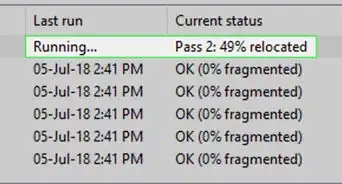
4Defragment your hard disks. Go to Start -> All Programs -> Accessories -> System Tools, and click Disk Defragmenter. Select which disk you wish to defragment and click Defragment.
-
5Clean out your Prefetch folder. Go to C:\Windows\Prefetch, and delete all the files and folders inside. Then restart your system. Do this monthly, but be careful not to delete the folder, only the files inside.
-
6Turn your page file higher. This can be done by going to the Control Panel -> System -> Advanced -> Settings. Click the settings button located under "Performance". Then click Advanced, and finally, click Change. Set your page file higher, or select System Managed Size. After you have made the necessary changes, lower the maximum size to the initial size, click Set, and then restart your system.
-
7Adjust your computer for best performance. Do this by returning to Control Panel -> System -> Advanced -> Settings, and marking Visual Effects to "Adjust For Best Performance". This will remove all the fancy visual effects, and change the theme back to Windows Classic.
-
8Downgrade your color quality. Right click your desktop, click properties, select the Settings tab, and change the color quality to 16 bit, or as low as your system will let you set it. Also avoid displaying huge desktop wallpapers, downloaded from the internet.
-
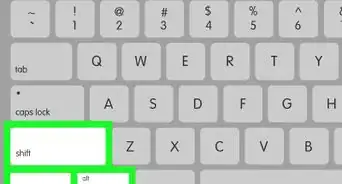
9Remove any malicious content such as viruses from your PC using a virus scanner. Malwarebyte's Anti-Malware or Avast Anti-Virus would be a good choice. It is recommended that you perform this step in Safe Mode. Restart your PC, and immediately after the boot screen, repeatedly press the F8, then navigate to the Safe Mode using your arrow keys and press ↵ Enter. After cleaning up your system, restart and boot normally.
-
10Improve your boot time. Go to Start -> Run -> and type msconfig in the field provided. Then press ↵ Enter. Go to the 'BOOT.INI tab, and check NOGUIBOOT.
-
11Remove startup services that your don't use. Go back to System Configuration Utility, go to Startup, and uncheck services that you might not want starting during the boot process. Make sure you know exactly which services you do not use you make these changes here. Making the wrong changes might make your system unstable.
-
12Clean out your Temp Files. Set Windows Explorer to display hidden files and folders by going to Control Panel -> Folder Options -> View, and select "Display Hidden Files and Folders". Then, browse to C:\Documents and Settings\Your Name\Local Settings\Temp. Delete only the files inside the Temp Folder; do not delete the folder itself.
-
13Disable indexing on your main hard drives. This can be done by going to My Computer, and disabling them under your hard disks properties.
-
14Remove unnecessary Windows Components. Do this by navigating to Control Panel -> Add or Remove Programs -> Add or Remove Windows Components. Be sure to check the files that you want to install or keep, and uncheck those that you want to uninstall. Be very careful here, because you can remove some programs and features that you may want to keep by accident.
-
15Remove your internet browsing history. Most browsers allow you to do this under their options.
-
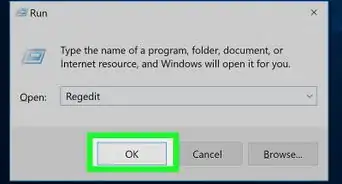
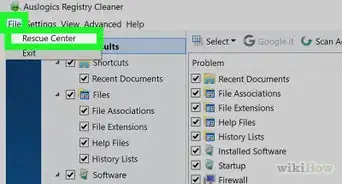
16Clean your registry. You can find several free registry cleaners on the internet. You can also use a registry defragmenter to defrag your page file and registry as well.
-
17Avoid desktop manipulation programs such as Stardock or Fences. These programs can slow down your computer, especially if it has a low amount of RAM.
-
18Try adding more RAM. If your are using Windows XP, it is recommend that you have at least 512 MB of RAM. If you are using Windows Vista, it is recommended that you have at least 1 GB.
-
19Install all Windows updates as well as the latest service packs. This can boost your computer speed also.
-
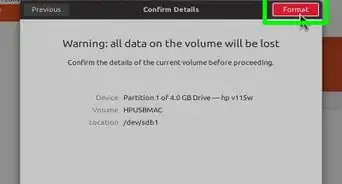
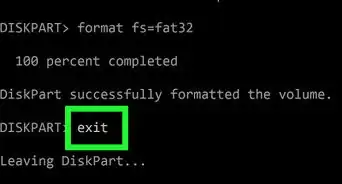
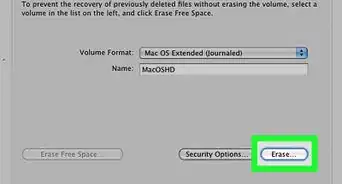
20As a last resort, reinstall your operating system. This should only apply if your computer is becoming unbearably slow to use. Reformat your hard drives, and reinstall your operating system.


Community Q&A
-
QuestionHow can I make Roblox run faster?
 Community AnswerIf you are in the game, enter the settings menu and turn down your graphic settings.
 -
QuestionMy laptop is designed for Windows XP, it currently has Windows7, and now laptop is slow. Should I switch back to Windows XP?
 Community AnswerIncrease your RAM, get a good processor (i3, i5, etc.), buy an Anti-Virus and install it on your laptop (if your computer is infected with malware it becomes really slow), and use disk cleanup to clear storage. All of these will increase the speed without having to revert back to XP.
 -
QuestionCan I do other thing to make it fast?Community AnswerTry optimizing your disk, cleaning your disk, and stopping useless background startup processes (through task manager).
-
QuestionMy laptop always lags and skips whenever I play videos or try opening two processes at a time. What can I do?Community AnswerYou can free up memory by deleting old files. However, the problem with the videos is probably a graphics issue and the multitasking is a processing issue.
Warnings
- Always use caution when making changes to the operating system. If you do not follow some of the tips here correctly, it might damage your operating system.Thanks!
- These tips are designed for Windows XP. Some of them may not work with Windows 7 or Vista.Thanks!
Things You'll Need
- A computer with a Windows Operating system.