X
This article was co-authored by wikiHow Staff. Our trained team of editors and researchers validate articles for accuracy and comprehensiveness. wikiHow's Content Management Team carefully monitors the work from our editorial staff to ensure that each article is backed by trusted research and meets our high quality standards.
The wikiHow Tech Team also followed the article's instructions and verified that they work.
This article has been viewed 37,876 times.
Learn more...
This wikiHow teaches you how to set your privacy settings to Only Me for your Facebook pictures on Android. Pictures set to Only Me are only viewable by you, and cannot be seen by anybody else.
Steps
Method 1
Method 1 of 2:Making Old Pictures Private
Method 1
-
1Open the Facebook App on your Android. The Facebook icon looks like a white “f” in a blue box.
- If you’re not automatically logged into Facebook on your device, you will have to sign in with your email or phone and your password.
-
2Tap the Profile button. It looks like a tiny figurehead icon in the upper-right corner of your screen.Advertisement
-
3Tap on View your profile. This will be right below your name and profile picture at the top.
-
4Scroll down and tap PHOTOS. This button is right below your name and profile information between ABOUT and FRIENDS.
-
5Tap on the UPLOADS tab. This will bring up all the photos you’ve previously posted on Facebook including your profile pictures, cover photos, timeline photos, mobile uploads, and photos in albums.
-
6Tap on a photo. This will open the photo in fullscreen image-viewer mode against a black background.
-
7Tap the Menu button. It looks like three dots in the upper-right corner of your screen.
- Depending on your phone and software, this button could also look like three horizontal lines at the bottom of your screen.
-
8Scroll down and tap Edit privacy.
- Depending on your phone and software, this option could also come up as Edit story privacy.
-
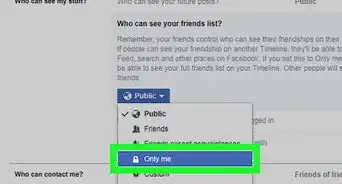
9Select Only me from the menu. This option will be next to a lock icon.
- If you don’t see this option, tap More at the bottom of the menu.
-
10Tap the back button. This is the backwards-facing arrow in the upper-left corner of your screen. It will save your photo’s privacy settings as Only Me. Photos set to Only me are only viewable by you, and nobody else can see them.Advertisement


Method 2
Method 2 of 2:Uploading New Private Pictures
Method 2
-
1Open the Facebook App on your Android. The Facebook icon looks like a white “f” in a blue box.
- If you’re not automatically logged into Facebook on your device, you will have to sign in with your email or phone and your password.
-
2Tap the Profile button. It looks like a tiny figurehead icon in the upper-right corner of your screen.
-
3Tap on View your profile. This will be right below your name and profile picture at the top.
-
4Scroll down and tap PHOTOS. This button is right below your name and profile information between ABOUT and FRIENDS.
-
5Tap the ADD button. This button looks like a small landscape icon with a plus sign on it in the upper-right corner of your screen. It will open your device’s image gallery.
-
6Tap on the images you want to post on Facebook. You can pick one or more images at once.
- Alternatively, tap on the camera icon in the upper-right corner to take a photo with your device’s camera.
-
7Tap DONE. It’s in the upper-right corner of your screen.
-
8Tap on the Audience Selector Tool. This is the downward-pointing arrow below your name to the left of the + Album button. It will display your default privacy settings for posting photos. This could be Public, Friends, Only Me, or a customized option.
-
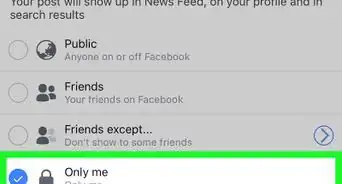
9Select Only me from the menu. This option will be next to a lock icon.
- If you don’t see the Only Me option, tap See All at the bottom of the menu.
-
10Tap Post. This button will be in the upper-right corner of your screen. It will post this image on your timeline. Pictures posted as Only me are only viewable by you, and cannot be viewed by anybody else.Advertisement


Warnings
- If you've previously tagged a friend in a photo, they can still view this image even when it's set to Only Me.Thanks!
Advertisement







About This Article

wikiHow Staff
wikiHow Staff Writer
This article was co-authored by wikiHow Staff. Our trained team of editors and researchers validate articles for accuracy and comprehensiveness. wikiHow's Content Management Team carefully monitors the work from our editorial staff to ensure that each article is backed by trusted research and meets our high quality standards. This article has been viewed 37,876 times.
How helpful is this?
Co-authors: 1
Updated: October 8, 2017
Views: 37,876
Categories: Facebook Privacy and Safety
Advertisement