X
This article was written by Jack Lloyd. Jack Lloyd is a Technology Writer and Editor for wikiHow. He has over two years of experience writing and editing technology-related articles. He is technology enthusiast and an English teacher.
The wikiHow Tech Team also followed the article's instructions and verified that they work.
This article has been viewed 634,857 times.
This wikiHow teaches you how to install and run XAMPP on a Linux computer.
Steps
Part 1
Part 1 of 2:Installing XAMPP
Part 1
-
1Open the XAMPP download page. Go to https://www.apachefriends.org/index.html in your computer's web browser. This is the official download site for XAMPP.
-
2Click XAMPP for Linux. It's in the middle of the page. This will prompt the XAMPP setup file to begin downloading onto your computer.
- You may have to click Save File or select the "Downloads" folder as your save location before proceeding.
Advertisement -
3Allow the download to complete. Once XAMPP's installation file finishes downloading onto your computer, you can proceed.
-
4Open Terminal. Click the Terminal app icon, which resembles a black box with a white ">_" inside of it.
- You can also just press Alt+Ctrl+T to open a new Terminal window.
-
5Change over to the "Downloads" directory. Type in cd Downloads and press ↵ Enter.
- Make sure you capitalize "Downloads".
- If your default downloads location is in a different folder, you'll have to change the directory to that folder.
-
6Make the downloaded file executable. Type in chmod +x xampp-linux-x64-7.2.9-0-installer.run and press ↵ Enter.[1]
- If you download a different version of XAMPP (e.g., version 5.9.3), you'll replace "7.2.9" with your XAMPP version's number.
-
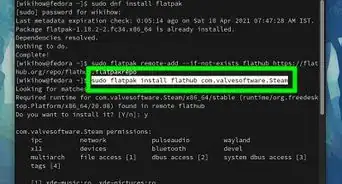
7Enter the installation command. Type in sudo ./xampp-linux-x64-7.2.9-0-installer.run and press ↵ Enter.
-
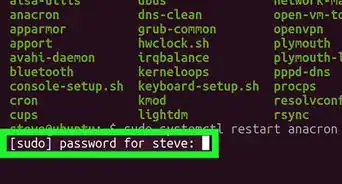
8Enter your password when prompted. Type in the password you use to log into your computer, then press ↵ Enter. The installation window will pop up.
- You won't see the characters appear in Terminal when you type.
-
9Follow the installation prompts. Once the installation window appears, do the following:
- Click Next three times.
- Uncheck the "Learn more about Bitnami for XAMPP" box.
- Click Next, then click Next again to begin installing XAMPP.
-
10Uncheck the "Launch XAMPP" box. It's in the middle of the final installation window.
- Since XAMPP needs a few extra steps to actually run on Linux, you'll need to finish the installation without automatically running XAMPP.
-
11Click Finish. This option is at the bottom of the window. Doing so will close the installation window. At this point, you're ready to run XAMPP.Advertisement


Part 2
Part 2 of 2:Running XAMPP
Part 2
-
1Re-open Terminal if necessary. If you closed the Terminal window that you used to install XAMPP, re-open Terminal.
- XAMPP doesn't have any desktop files, so you'll need to launch it from within its installation directory via Terminal each time you want to run it.
-
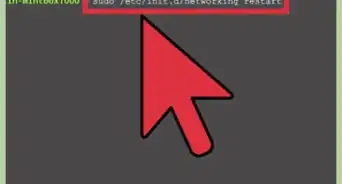
2Switch to the XAMPP installation directory. Type in cd /opt/lampp and press ↵ Enter.[2]
-
3Enter the "Open" command. Type in sudo ./manager-linux-x64.run and press ↵ Enter.
-
4Enter your password when prompted. Type in the password you usually use to log into your computer, then press ↵ Enter.
-
5Click the Manage Servers tab. This option is at the top of the window.
-
6Click Start All. It's at the bottom of the window. Doing so prompts any active components of XAMPP to begin running.
-
7Open your computer's localhost page. Go to 127.0.0.1 in your computer's web browser. You should see the XAMPP dashboard here; at this point, you're able to begin using XAMPP as you please.Advertisement


Community Q&A
-
QuestionAfter I install XAMPP on Linux OS, where should I put all PHP script files to execute them?
 Community AnswerBy default you should put it on /opt/lampp/htdocs/. You can create a folder inside it and execute php files via localhost/{folder_name}/{file_name}
 -
QuestionWhat do I do if I installed XAMPP but I can't access phpmyadmin?
 HaXng BuddhaCommunity AnswerMake sure Apache is running first in the dashboard, then you should be able to access phpmyadmin.
 -
QuestionAfter I install this according to the given instructions, how can I access it from another computer in my local area network?
 Community AnswerYou can access it by changing the "localhost" part of "localhost/foldername/" to your computer IP (ex: 192.xxx.x.xxx/foldername) at your local network.
 -
QuestionHow do I install XAMPP on Linux if I get a syntax error message and the installer quits?
 Community AnswerYou may be installing the wrong version. The latest XAMPP installations are for x64 computers. Your computer may actually be x32. If you go to the Sourceforge website XAMPP page, you can look for a version that does not have x64 in the title and download that version. That is what I had to do after I got that syntax error message; I downloaded the the latest x32 version and it worked.
 -
QuestionI am running Fedora 29 on my x64 machine. How do I install XAMPP?Community AnswerFedora is a Linux distro; therefore, you can easily follow the same steps as above and successfully install XAMPP.
-
QuestionWhat do I do if i try to run xampp through terminal but it says permission denied?
 Community AnswerYou forgot to run XAMPP server with sudo. Sudo temporarily runs commands as root, and you ran XAMPP as a normal user that does not have access.
 -
QuestionI go to directory opt/lamp/ and then I type command sudo ./manager-lampp-x64.run and an error appears and says "Unknown error in application".
 Christian ElliottCommunity AnswerThat is happening because that is not the right line of code to use. Here is the right code: ./manager-lampp-x64.run.
Warnings
- Make sure you check your XAMPP installation file's version number before entering it into Terminal. Entering the wrong number will result in an error.Thanks!
Advertisement
References
About This Article
Article SummaryX
1. Go to https://www.apachefriends.org/index.html.
2. Click XAMPP for Linux to download.
3. Open a terminal window.
4. Use "chmod +x" to make the downloaded file executable.
5. Use "sudo ./(filename)" to run the installer.
6. Follow the on-screen instructions to install.
Did this summary help you?
Advertisement