X
This article was co-authored by wikiHow Staff. Our trained team of editors and researchers validate articles for accuracy and comprehensiveness. wikiHow's Content Management Team carefully monitors the work from our editorial staff to ensure that each article is backed by trusted research and meets our high quality standards.
The wikiHow Tech Team also followed the article's instructions and verified that they work.
This article has been viewed 26,199 times.
Learn more...
This wikiHow teaches you how to download the GroupMe app and create a new account, using Android.
Steps
Part 1
Part 1 of 3:Installing the App
Part 1
-
1
-
2Tap the search bar. The search bar reads Google Play at the top of your screen. You can enter any keyword here to search the apps, books, or movies on the Play Store.Advertisement
-
3Type GroupMe into the search bar.
- The search function is not case-sensitive. You don't have to capitalize any letters here.
-
4Tap ↵ Enter or ⏎ Return on your keyboard. This will search the store, and list all the matching results on a new page.
- If you're using Google Keyboard, tap the green magnifier icon on the bottom-left.
-
5Find and tap the GroupMe app in the search results. The GroupMe icon looks like a blue speech bubble with a white "#" icon in it. Tapping it will open the app info page.
-
6Tap the green INSTALL button. This button is located below the GroupMe icon on the app info page. It will download and install the app on your Android.
- If you see a button that says OPEN instead of INSTALL, this means you already have the app installed on your Android.
-
7Wait for your download to finish. You will see a green progress bar on the app info page that shows your download rate. When your download hits 100%, the progress bar will disappear.
-
8Wait for the app installation to finish after the download. When your download is finished, your Android will have to install the downloaded app. The app page will indicate "Installing".
-
9Tap the green OPEN button. When the app is installed and ready to go, you will see a white UNINSTALL button and a green OPEN button on the app page. Tapping this button will open the app.Advertisement


Part 2
Part 2 of 3:Creating a New Account
Part 2
-
1Enter your email address on the login screen. Tap the Enter your email address field at the bottom of the login screen, and enter the email you want to sign up with.
- Alternatively, you can sign up with a social media account by tapping one of the Google, Facebook, or Microsoft icons. This will automatically import your email address and personal info from your social media account.
-
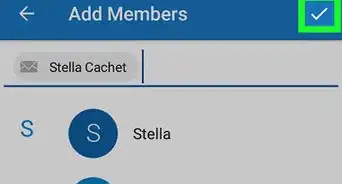
2Tap the white checkmark icon. This button is in the upper-right corner of your screen. It will take you to the Sign Up form.
-
3Enter your name in the Name field. This will be your display name, and all of your friends will see you by this name in your group chats.
-
4Create a new password in the Enter your password field. Make sure you enter a secure password here. You will use this password to log into your account.
-
5Tap and check the box next to "I agree to the Terms of Service and Privacy Policy." You can't create a new account without agreeing to these terms.
- If you want to read the Terms of Service or the Privacy Policy, just tap it here.
-
6Tap the white checkmark icon. This button is in the upper-right corner of your screen. It will create your new account, and take you to the Verify Phone Number page.Advertisement


Part 3
Part 3 of 3:Verifying Your Phone Number
Part 3
-
1Tap USE THIS PHONE'S NUMBER on the Verify Phone Number page. This is a blue button at the bottom of your screen. It will let you link your phone number to your new GroupMe account.
- Alternatively, you can select Verify a Different Phone Number and enter a different phone number. As long as you make sure you can receive a call or text message, any number is fine.
-
2Tap Allow in the pop-up window. Your Android will ask if you want to allow the GroupMe app to make calls. Tap Allow here if you want to receive your verification code via phone call.
-
3Tap Allow in the pop-up window again. Your Android will now ask if you want to allow the GroupMe app to send text messages. Tap Allow here if you prefer to receive your verification code via SMS.
-
4Enter your verification PIN code. GroupMe will send your phone number an SMS text message with a 4-digit verification PIN code in it. Tap the PIN field here and enter your verification code.
-
5Tap the white checkmark icon. This button is in the upper-right corner of your screen. It will verify your PIN code, and take you to the welcome screen.
-
6Tap the SKIP button. This button is located in the lower-left corner of the welcome screen. It will skip the welcome tips, and take you to the GroupMe app. You can now start your first group.
- Alternatively, swipe left on your screen or tap the blue arrow on the bottom-right to see all the tips.
Advertisement






About This Article

wikiHow Staff
wikiHow Staff Writer
This article was co-authored by wikiHow Staff. Our trained team of editors and researchers validate articles for accuracy and comprehensiveness. wikiHow's Content Management Team carefully monitors the work from our editorial staff to ensure that each article is backed by trusted research and meets our high quality standards. This article has been viewed 26,199 times.
How helpful is this?
Co-authors: 6
Updated: August 26, 2018
Views: 26,199
Categories: Featured Articles | GroupMe for Android
Advertisement