This article was written by Darlene Antonelli, MA. Darlene Antonelli is a Technology Writer and Editor for wikiHow. Darlene has experience teaching college courses, writing technology-related articles, and working hands-on in the technology field. She earned an MA in Writing from Rowan University in 2012 and wrote her thesis on online communities and the personalities curated in such communities.
This article has been viewed 14,464 times.
Though it's not possible to directly delete contacts from GroupMe, you can block members from contacting you or adding you to groups. If you don’t want to block a person but no longer want them in your group chat, you can remove them as long as the group was created as an Open Group instead of a Closed Group. This wikiHow teaches you how to block contacts or remove them from groups using an Android phone or tablet.
Steps
Method 1
Method 1 of 2:Blocking a Contact
-
1Open GroupMe. This app icon looks like a white hashtag above a curved line on a blue speech bubble. You can find this app on your home screen, in the app drawer, or by searching.
- If you're not already signed in, follow the on-screen instructions to do so now.
-
2Tap the ☰ menu. It's on the left side. A menu will slide out.
-
3Tap Contacts. This will open a list of your contacts.
-
4Tap the contact you want to block. That contact’s options will open.
-
5Tap the red Block button. A warning message about blocking this contact will pop up.
-
6Tap Block again to confirm. Now that you've blocked this person, they won't be able to send you messages or add you to groups.[1] .
- If you want to unblock a contact in the future, scroll all the way to the bottom of the list to find your block contacts, tap the person's name, and then tap Unblock.


Method 2
Method 2 of 2:Removing a Contact from a Group Chat
-
1Open GroupMe. This app icon looks like a white hashtag above a curved line on a blue speech bubble. You can find this app on your home screen, in the app drawer, or by searching.
- Anyone in a group can only remove someone from a group it was created as an Open Group. If the chat is a Closed Group, only the admin can remove members from the conversation.[2]
- If you're not already signed in, follow the on-screen instructions to sign in now.
-
2Tap the group chat you want to remove someone from. You can find this in the list of chats that load when you open the app.
-
3Tap the group icon. It's the group's avatar at the top-right corner of the chat.
-
4Tap Members. This is the first option in the list. A list of all members will open.
-
5Tap ⋮. This is in the upper right.
-
6Tap Remove Members. The top menu of the screen will change to indicate you’re in deletion mode.
-
7Tap the contact you want to remove from the group. A check will appear on their profile photo.
- You tap as many members as you wish.
-
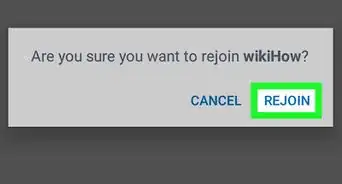
8Tap the remove member icon. This is in the upper right corner and looks like a group of people with an “x” next to them. This removes the selected member(s) from the group. Members you've removed cannot rejoin unless they are invited by another member.







References
About This Article

1. Open GroupMe.
2. Tap the three line menu.
3. Tap Contacts.
4. Tap the contact you want to block.
5. Tap Block.
6. Tap Block again to confirm.