X
This article was written by Jack Lloyd. Jack Lloyd is a Technology Writer and Editor for wikiHow. He has over two years of experience writing and editing technology-related articles. He is technology enthusiast and an English teacher.
The wikiHow Tech Team also followed the article's instructions and verified that they work.
This article has been viewed 236,885 times.
This wikiHow teaches you how to install the GNOME graphical user interface (GUI) on a computer that's running Arch Linux. GNOME is one of the most popular GUIs for Arch Linux, as Arch Linux has no GUI by default.
Steps
Part 1
Part 1 of 3:Setting up Sound
Part 1
-
1Make sure that you're using Arch Linux. If you have a dual-boot system, you may need to switch to Arch Linux by restarting your computer, selecting Arch Linux when prompted, and pressing ↵ Enter.
- If you restart your computer, you will have to enter your username and password to log into Arch Linux before continuing.
-
2Enter the sound package download command. Type in sudo pacman -S alsa-utils and press ↵ Enter.Advertisement
-
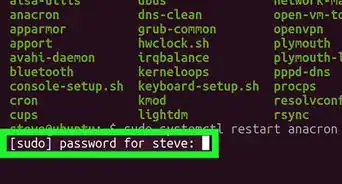
3Enter your root password when prompted. This password may be different than the one that you use to log into your system. Type in your password, then press ↵ Enter.
-
4Confirm the download. Type in y and press ↵ Enter. The Arch Linux sound package will begin downloading.
-
5Enter the sound configuration command. Type in alsamixer and press ↵ Enter. You should see a series of vertical bars appear on your screen.
-
6Configure your computer's sound levels. Select a sound level (e.g., master) using the right or left arrow keys, then raise or lower the volume of that level by pressing the up or down arrow key. When you're done setting the levels, press F6, select your computer's sound card name, and press ↵ Enter.
-
7Exit the sound configuration page. Press the Esc key to do so.
-
8Test your speakers. Type in speaker-test -c 2 and press ↵ Enter. This will prompt Linux to test your speakers to make sure that they're working properly.
-
9Complete the process. Press Ctrl+C (or ⌘ Command+C on a Mac) to do so.Advertisement


Part 2
Part 2 of 3:Installing the X Window System
Part 2
-
1Enter the X Window download command. Before you can install a "desktop environment" (a GUI) on your computer, you'll need to install the base for it. Type sudo pacman -S xorg-server xorg-xinit xorg-server-utils into the command line and press ↵ Enter.
-
2Confirm the download. When prompted, type in y and press ↵ Enter.
-
3Enter the command to install desktop features. Type in sudo pacman -S xorg-twm xorg-xclock xterm and press ↵ Enter.
-
4Enter your password, then confirm the download. When prompted, type in your root password and press ↵ Enter, then type in y and press ↵ Enter.
-
5Wait for the installation to complete. This may take a few minutes since the packages are being downloaded onto your computer.
-
6Start the X Window System. Type in startx and press ↵ Enter. Doing so will open the X Window System command line, from which point you can install the GNOME GUI.Advertisement


Part 3
Part 3 of 3:Installing GNOME
Part 3
-
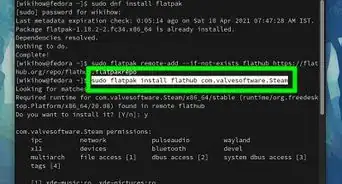
1Enter the DejaVu font download command. This font is crucial for the X Window System to work properly. Type in sudo pacman -S ttf-dejavu and press ↵ Enter.[1]
-
2Enter your root password. When prompted, type in your root password and press ↵ Enter.
-
3Confirm the download. Type in y and press ↵ Enter.
-
4Wait for the font to finish installing. This should only take a few minutes.
-
5Enter the GNOME download command. Type in sudo pacman -S gnome and press ↵ Enter.
-
6Confirm the download. When prompted, type in y and press ↵ Enter. GNOME will begin downloading.
- This process can take anywhere from a couple of minutes to a couple of hours depending on your Internet speed.
-
7Install an updated command line. The GNOME command line doesn't work in several versions of Arch Linux, but you can install a different one to compensate. To do so:
- Type in sudo pacman -S lxterminal and press ↵ Enter.
- Enter your root password when prompted.
- Type in y and press ↵ Enter.
-
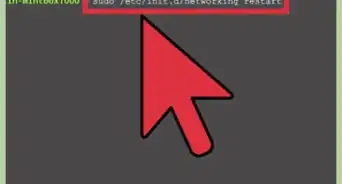
8Enable the display manager. Type in sudo systemctl enable gdm.service and press ↵ Enter.
-
9Enter your password when prompted. You'll have to enter your root password at least twice during the display manager authentication. Once you see the phrase "AUTHENTICATION COMPLETE" at the bottom of the page, you can proceed.
-
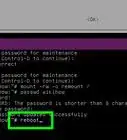
10Reboot your computer. Type in reboot and press ↵ Enter. Your computer will restart itself; once it finishes rebooting, you should be greeted with a login page where you can select your name using the mouse, enter your password, and proceed into your newly interfaced computer desktop.Advertisement


Warnings
- Installing a GUI is highly recommended for beginning or intermediate users, as Arch Linux is command line-only otherwise.Thanks!
Advertisement
References
About This Article
Advertisement