This article was written by Darlene Antonelli, MA. Darlene Antonelli is a Technology Writer and Editor for wikiHow. Darlene has experience teaching college courses, writing technology-related articles, and working hands-on in the technology field. She earned an MA in Writing from Rowan University in 2012 and wrote her thesis on online communities and the personalities curated in such communities.
This article has been viewed 1,964 times.
Brave is a web browser available for Android, iOS, Windows, Mac, and Linux that features ad blocking and blocking trackers to offer you more speed and privacy.
Steps
Method 1
Method 1 of 3:Using Android or iOS
-
1
-
2Search "Brave". The search bar is at the top of your screen in the Google Play Store or in a tab along the bottom of your screen that's marked with a magnifying glass in the App Store.
- Enter "Brave" and tap the "Enter" key on your keypad to continue.
Advertisement -
3Tap the search result that lists Brave Software as the developer. It's next to an orange and red icon of a lion.
-
4Tap Get (App Store) or Install (Google Play Store). Since this is a free download, you don't need to enter your payment information. You'll find the orange and yellow lion icon on one of your Home screens, in the app drawer, or by searching.Advertisement


Method 2
Method 2 of 3:Using Windows and Mac
-
1Go to https://brave.com/download/ or https://try.bravesoftware.com/. This will take you to the download section of Brave's website.
- Make sure your device is compatible. Brave supports PCs Windows 7, Windows 8, Windows 8.1, Windows 10 or later and with an Intel Pentium 4 processor or later that's SSE2 capable—and Mac OS X El Capitan 10.11.0 or later.[1]
-
2Click Download Brave. The downloader should automatically detect your operating system and display the correct download and information. If not, you can select your operating system from the links below the download button.
-
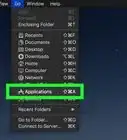
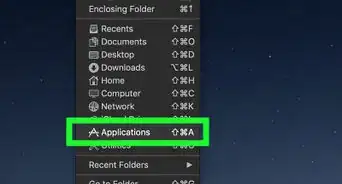
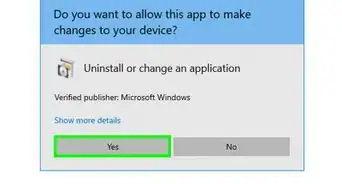
3Double-click the downloaded file. It will run the installer and automatically download the browser. If you're prompted to let the app make changes to your computer, click Yes and continue. On a Mac, you may be prompted to drag and drop the Brave icon into the Applications folder in Finder.
- After it downloads you can find Brave in either your Applications folder in Finder or in your Start menu under "Recently Added."
Advertisement


Method 3
Method 3 of 3:Using Debian 9+, Ubuntu 14.04+, and Mint 17+
-
1Open Terminal. You can press Ctrl+Alt+T.
-
2Enter the following line of code: This code is from https://brave.com/linux/.and press Enter.
sudo apt install apt-transport-https curl gnupg
-
3Enter the following code after you've received a response from your Terminal:and press Enter on your keyboard.
curl -s https://brave-browser-apt-release.s3.brave.com/brave-core.asc | sudo apt-key --keyring /etc/apt/trusted.gpg.d/brave-browser-release.gpg add -
-
4Enter the following code:and press Enter on your keyboard.
echo "deb [arch=amd64] https://brave-browser-apt-release.s3.brave.com/ stable main" | sudo tee /etc/apt/sources.list.d/brave-browser-release.list
-
5Enter the following code after you've received a response from Terminal:and press Enter on your keyboard.
sudo apt update
-
6Enter the following code after you've received a response from Terminal:and press Enter on your keyboard.
sudo apt install brave-browser
- If you get gnutls_handshake() errors, you need to uninstall old conflicting packages, which might include "libgnutls-deb0-28".[2]
Advertisement






References
About This Article

1. Open the Google Play Store or App Store.
2. Search "Brave."
3. Tap the search result that lists Brave Software as the developer.
4. Tap Get (App Store) or Install (Google Play Store).