This article was co-authored by wikiHow Staff. Our trained team of editors and researchers validate articles for accuracy and comprehensiveness. wikiHow's Content Management Team carefully monitors the work from our editorial staff to ensure that each article is backed by trusted research and meets our high quality standards.
The wikiHow Tech Team also followed the article's instructions and verified that they work.
This article has been viewed 2,988 times.
Learn more...
This wikiHow teaches you how to add the "at" (@) symbol to any message, note or email on an iPhone or iPad. You can find the "@" key in your keyboard's special character layout.
Steps
-
1Open the text field where you want to type on your iPhone or iPad. You can add the "at" (@) symbol to any text on your phone or tablet, including messages, notes, and emails.
-
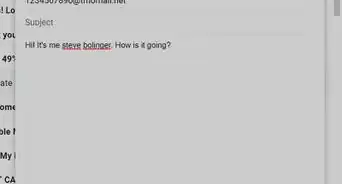
2Tap where you want to insert the @ symbol. Your cursor will show up blinking where you tap on the text, and your keyboard will slide in from the bottom of your screen.
- You can hold down and drag your cursor to select where you want to type.
- When you tap and hold, this will show your text and cursor under a small magnifier. You can precisely select where you want to type here.
- You can also press down on your keyboard to move the cursor.
Advertisement -
3Tap the 123 button on the bottom-left of your keyboard. This button is located below the ⇧ button in the lower-left corner of your keyboard. It will open the keyboard's special characters layout.
-
4Tap the @ key on your keyboard. This will insert the "at" symbol where your cursor is.
- You can tap the ABC key to navigate back to the normal keyboard.
Advertisement









About This Article

1. Open the text you want to edit.
2. Tap the text.
3. Hold down and drag your cursor.
4. Tap the 123 button on the bottom-left of keyboard.
5. Tap the "@" key.