X
wikiHow is a “wiki,” similar to Wikipedia, which means that many of our articles are co-written by multiple authors. To create this article, volunteer authors worked to edit and improve it over time.
This article has been viewed 86,619 times.
Learn more...
Getting bored of playing the over world? Need some challenges? Want to go on an adventure? Download a map created by other people!
Steps
-
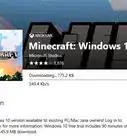
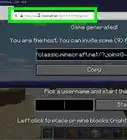
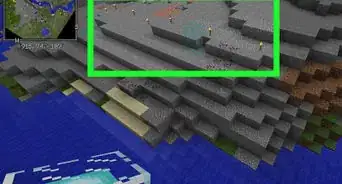
1Download some map you prefer to play. Don't worry about downloading an unwanted map, because there will be preview on the site itself. This may also take a while depending on your internet speed and the size of the world.
-
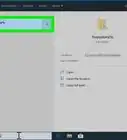
2Locate your downloads folder.
- To locate this on a Windows computer, press the 'start' button and type in 'downloads' in the search bar right above the 'start' button. Then, click on the 'download' folder.
Advertisement -
3Find just the world you just downloaded.
- If you downloaded the world and its in a compressed file like WinRAR or 7zip, you need to open it up by double-clicking on the file.
-
4Go to the 'Start' menu and click on 'Computer'.
-
5After 'computer' has opened up, in the top-middle bar, type in %appdata% and press enter. Then, you will see some files. '.minecraft' should be at the top and click on it.
-
6Copy the new world into your 'Saves' folder.
- You can do this by dragging the .minecraft folder to the right of you screen and the screen containing the world to the left.
-
7In the '.minecraft' folder, find the 'Saves' folder and click on it. There will be some worlds that you had already. Then, from the left file on which contains the world you downloaded, drag the downloaded world folder to the right of the screen which is your 'saves' folder.
-
8Play Minecraft! The world you just dragged over should be at the bottom.Advertisement


Community Q&A
-
QuestionHow do I do this on a Mac?
 CanisChiropteraCommunity AnswerOpen Finder and select the "Go" tab. At the bottom of it, there's an option to "Go to folder..." Type "~/Library" into the search bar that pops up. Inside the library, select "Application Support," then the "Minecraft" folder will be inside that. In the Minecraft folder there will be another called "Saves." Drag the world's folder into this one and restart the game, it should appear with your other worlds.
About This Article
Advertisement