This article was co-authored by Darlene Antonelli, MA. Darlene Antonelli is a Technology Writer and Editor for wikiHow. Darlene has experience teaching college courses, writing technology-related articles, and working hands-on in the technology field. She earned an MA in Writing from Rowan University in 2012 and wrote her thesis on online communities and the personalities curated in such communities.
This article has been viewed 1,713 times.
Is the text on your screen too small? Have you tried the shortcuts that you use in a web browser to make your font bigger and easier to read? This wikiHow article will show you how to increase the font size in Windows 10 using shortcuts as well as the settings menu.
Steps
Method 1
Method 1 of 3:Making Text Bigger with Keyboard or Mouse Shortcuts
-
1Navigate to the font you want to make bigger. This works in places like File Explorer running Windows 10.
-
2Press and hold Ctrl. You'll want to keep this pressed as you move to the next step.
-
3Scroll the scroll wheel on your mouse or press + or -. If you have a mouse with a scroll wheel connected to your computer, you might decide to scroll with the mouse first. If you use the keyboard shortcut instead, press 0 to return to normal view.[1]
- This shortcut also works in most web browsers, like Google Chrome and Microsoft Edge.

Method 2
Method 2 of 3:Using the Magnifier
-
1Launch the Magnifier. Press the Windows key and the plus sign. You'll see + in the row of numbers at the top of your keyboard.
- Another option to open Magnifier is to press the Windows key and search for "Magnifier."
-
2Press ⊞ Win++ to zoom in. The zoom-in percentage will display in the Magnifier window.
-
3Press ⊞ Win+- to zoom out. You can move the zoomed portion of the screen by scrolling to the sides. For instance, if there's something at the top of the screen that you want to see, scroll the mouse to the top of your screen and the zoomed window will move to show you the top of the screen.
- You can press Win + Esc to close the Magnifier.

Method 3
Method 3 of 3:Changing Settings in Ease of Access
-
1Open Settings. You can press Win + I or press the Windows logo to open the Start menu and click the gear icon.
-
2Click Ease of Access. It's next to an icon of a dashed outline of a circle and two arrows forming a clock.
-
3Click Display. You'll see this in the menu on the left side of the screen.
-
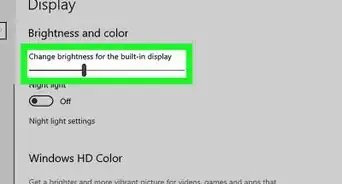
4Drag the slider to the right to increase the font size. The text slider is under the header, "Make text bigger" and as you make the text larger, you can see how it'll look in the "Sample text" box.
- Drag the slider left to decrease the font size.[2]



-Step-17.webp)











References
About This Article

1. Navigate to the font you want to make bigger.
2. Press and hold Ctrl.
3. Scroll the scroll wheel on your mouse or press + or -.

-Step-17.webp)