This article was written by Travis Boylls. Travis Boylls is a Technology Writer and Editor for wikiHow. Travis has experience writing technology-related articles, providing software customer service, and in graphic design. He specializes in Windows, macOS, Android, iOS, and Linux platforms. He studied graphic design at Pikes Peak Community College.
The wikiHow Tech Team also followed the article's instructions and verified that they work.
This article has been viewed 59,131 times.
This wikiHow teaches you how to adjust the screen brightness for your computer in Windows 10. You can adjust the screen brightness in the Settings menu. You can also adjust the screen brightness in the battery life tab in the task bar.
Steps
Method 1
Method 1 of 2:Using Action Center
-
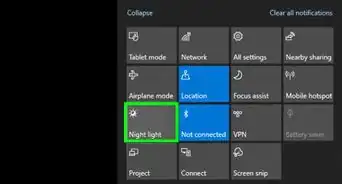
1Open the Action Center. Click on the message icon to the right of the clock to open the action center.
-
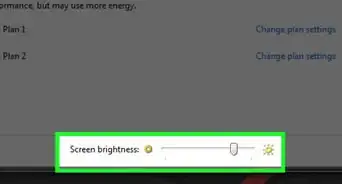
2Drag the brightness slider to adjust the screen brightness. It's near the bottom of the screen and has a sun next to it. You can drag it to the left to lower the screen brightness, and to the right to raise the screen brightness.[1]Advertisement


Method 2
Method 2 of 2:Using Settings
-
1
-
2
-
3Click System. It's the first item in the Windows Settings menu. It's next to an icon that resembles a computer.
-
4Click Display. It's the first option in the sidebar to the left. This displays your display settings.
-
5Drag the slider bar to adjust the screen brightness. The slider bar that says "Change brightness" is at the top of the display settings. Drag the slider bar to the left to lower the screen brightness. Drag it to the right to increase the screen brightness.
- Use a lower screen brightness to conserve power/battery life.
Advertisement


Community Q&A
-
QuestionI tried doing all these steps, but the brightness is not changing. What should I do?
 R2_d2000Top AnswererIt sounds like your computer's display drivers aren't installed correctly. You can visit the manufacturer's website, or contact their support, to download the latest drivers for your computer.
 -
QuestionI'm using a PC that does not have an option for brightness in settings. What do I do?R2_d2000Top AnswererIt sounds like you are using a computer with an independent monitor. Try to use the button on the monitor to change the brightness.
Warnings
- This will not work on computers with a stand alone monitor. To change the brightness on those, you will need to use the buttons on the monitor.[3]Thanks!

-Step-17.webp)










References
About This Article

1. Click the Windows Start menu.
2. Click the Gear icon.
3. Click System.
4. Use the slider bar to adjust screen brightness.

-Step-17.webp)









































