X
wikiHow is a “wiki,” similar to Wikipedia, which means that many of our articles are co-written by multiple authors. To create this article, volunteer authors worked to edit and improve it over time.
This article has been viewed 18,637 times.
Learn more...
If you have a YouTube channel, you can hold any comments that include links for your review. This feature helps you to avoid spammy links in your comments. This wikiHow will help you learn how to enable this setting.
Steps
-
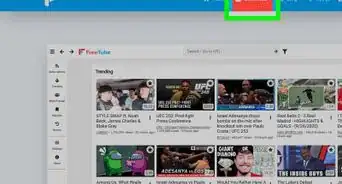
1Log in to your YouTube account. Open www.youtube.com in your web browser and log in with your account, if you haven't already done so.
-
2Open the Creator Studio tab. Click on your profile icon, at the top-right corner and select “Creator Studio” from the drop-down menu.Advertisement
-
3Click on the COMMUNITY option. You will see this option on the left side menu, under the “CREATOR STUDIO” title.
-
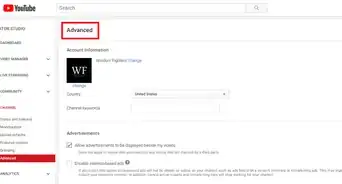
4Select Community settings. You will find this option under the “COMMUNITY” section. You can also use the following link to access the Community Settings: www.youtube.com/comment_management
-
5Scroll to the Block links option. This will be the last option in the “Automated filters” section. Check the box next to the “Block links” text.
-
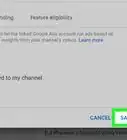
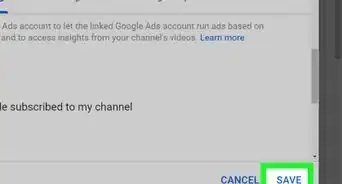
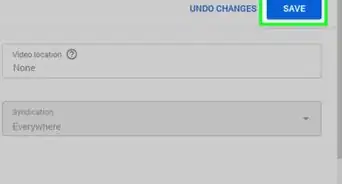
6Save your changes. Click the Save button to apply your changes. After you do so, any new comments with links and hashtags will be automatically held for review. Also, live chat messages with URLs will be blocked.
-
7Approve or delete a blocked comment (optional). If you want to approve a blocked comment, go to Creator Studio > Community > Community or Comments and click on the Held for review option. Then, click on the checkmark next to the blocked comment to approve it. If you want to delete it, just click on the trash bin icon. That's it!Advertisement


Warnings
- When you have enabled this option, comments with hashtags will also be held for review.Thanks!
Advertisement

About This Article
Advertisement