X
wikiHow is a “wiki,” similar to Wikipedia, which means that many of our articles are co-written by multiple authors. To create this article, volunteer authors worked to edit and improve it over time.
The wikiHow Tech Team also followed the article's instructions and verified that they work.
This article has been viewed 15,809 times.
Learn more...
While certain toolbars can be useful depending on your Internet browsing behavior, some toolbars can get in the way or clutter your browsing session -- especially when they’re unwanted or were installed without your knowledge. Toolbars can be disabled and hidden at any time by managing your browser’s add-ons and extensions settings.
Steps
Method 1
Method 1 of 3:Hiding Toolbars in Google Chrome
Method 1
-
1Click on the Chrome menu button located at the top right corner of your Chrome session.
-
2Point to “More tools,” then click on “Extensions.” A list of all your Google Chrome extensions will open in a new tab.
-
3Remove the checkmark next to “Enabled” for each toolbar you want hidden. The toolbars you disabled will now be hidden in Chrome.[1]
- Alternately, you can click on the trash can icon to delete the extension indefinitely if you no longer want the toolbar to show up in future sessions of Chrome.


Method 2
Method 2 of 3:Hiding Toolbars in Mozilla Firefox
Method 2
-
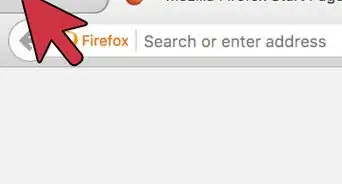
1Click on the Firefox menu button located at the top right corner of your Firefox session.
-
2Click on “Add-ons.” The Firefox Add-ons Manager will open in a new browser tab.
-
3Click on “Extensions” in the left pane of the Add-ons Manager.
-
4Click on “Disable” next to the toolbar you want hidden in Firefox.
-
5Select the option to restart Firefox. Firefox will close and reopen, and the toolbar you disabled will now be hidden.[2]


Method 3
Method 3 of 3:Hiding Toolbars in Internet Explorer (IE)
Method 3
-
1Click on “Tools” at the top of your current IE session.
-
2Click on “Manage Add-ons.” All add-ons will open and display in a new window.
- To hide a toolbar associated directly with IE and not a third-party service, go to “Tools” and point to “Toolbars” instead, then select the toolbar you want hidden.[3]
-
3Click on “Toolbars and Extensions” in the left pane of the Manage Add-ons window.
-
4Select “All add-ons” in the “Show” dropdown menu displayed in the left pane.
-
5Click on the name of the toolbar you want hidden in IE, then click on “Disable.”
-
6Click on “Disable” again when the pop-up asks you to confirm whether you want the add-on disabled.
-
7Close the “Manage Add-ons” window. Going forward, the toolbar you disabled will be hidden in future sessions of IE.[4]








References
- ↑ http://features.en.softonic.com/how-to-remove-toolbars-in-chrome
- ↑ https://support.mozilla.org/en-US/kb/remove-toolbar-has-taken-over-your-firefox-search
- ↑ http://windows.microsoft.com/en-us/windows/customize-internet-explorer-toolbars#1TC=windows-7
- ↑ http://www.pcworld.com/article/241720/how_to_remove_browser_toolbars_in_internet_explorer.html