X
This article was co-authored by wikiHow Staff. Our trained team of editors and researchers validate articles for accuracy and comprehensiveness. wikiHow's Content Management Team carefully monitors the work from our editorial staff to ensure that each article is backed by trusted research and meets our high quality standards.
The wikiHow Tech Team also followed the article's instructions and verified that they work.
This article has been viewed 68,932 times.
Learn more...
This wikiHow teaches you how to give someone an admin role on your Facebook Page. Pages are the Facebook accounts used for business and other non-personal purposes.
Steps
Method 1
Method 1 of 2:On Desktop
Method 1
-
1Go to https://www.facebook.com in a web browser.
- Sign in if your're not automatically logged in.
-
2Click the Facebook logo. It's the blue f in a white square in the upper-left part of the window.Advertisement
-
3Click Pages. It's in the left pane under "EXPLORE."
- If the window doesn't open to the Page(s) you own or administer, click the Your Pages tab at the top of the window.
- You must be a Page admin to give someone else an admin role.
-
4Click the name of a Page. Choose the page to which you'd like to add an admin.
-
5Click Settings. It's in the white bar in the upper-right corner of the window.
-
6Click Page Roles. It's near the center of the menu in the left part of the window.
-
7Scroll down to the "Assign a New Page Role" section. It's in the left pane of the window.
-
8Enter an email address. Type the email address of the person to whom you want to give an admin role in the field below "Assign a New Page Role."
-
9Click the drop-down menu to the right of the email field.
-
10Click Admin.
-
11Click the blue Add button. The person's whose email you entered can now administer your Facebook Page when they log in to Facebook with the same email address.
- Page admins can perform any function on the Page, including editing content, purchasing ads, and adding or deleting other users.
Advertisement


Method 2
Method 2 of 2:On the Facebook Page Mobile App
Method 2
-
1Open the Facebook Page app. It's a white app with an orange flag icon.
- Facebook Page is available for free from the Apple App Store or the Google Play Store.
-
2Tap ☰ in the upper-left corner.
-
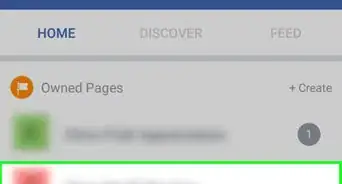
3Tap a page. Choose the page to which you'd like to add an admin.
-
4Tap … in the lower-right corner.
-
5
-
6Tap Edit Page Roles. It's near the top of the page.
-
7
-
8Enter the name of a Facebook friend.
- If you're not already Facebook friends with the person you want to add in an admin role, send them a friend request and wait for them to accept before attempting to make them an admin.
-
9Tap the name of the person you want to add.
-
10Tap Admin.
-
11Tap Add. The friend you added can now administer your Facebook Page when they log in to Facebook.
- Page admins can perform any function on the Page, including editing content, purchasing ads, and adding or deleting other users.
Advertisement


-Step-8.webp)












About This Article

wikiHow Staff
wikiHow Staff Writer
This article was co-authored by wikiHow Staff. Our trained team of editors and researchers validate articles for accuracy and comprehensiveness. wikiHow's Content Management Team carefully monitors the work from our editorial staff to ensure that each article is backed by trusted research and meets our high quality standards. This article has been viewed 68,932 times.
How helpful is this?
Co-authors: 11
Updated: November 5, 2020
Views: 68,932
Categories: Facebook
Advertisement
-Step-8.webp)