X
This article was co-authored by Chris Batchelor. Chris Batchelor has been working with Shipt delivery services since July 2018. He has completed over 100 deliveries and works carefully to keep up with changes to the service and its processes.
This article has been viewed 1,752 times.
As a Shipt Shopper, much like many employees and contract workers during the COVID-19 pandemic, you can opt to receive personal protective equipment (PPE) that will help you stay well while doing what you love - shopping! Follow the steps below, and you'll receive the items in a few days.
Steps
Part 1
Part 1 of 4:Preparing to Order
Part 1
-
1Open your email program attached to the email address you have listed on your Shopper profile. This is where you will receive the information for the next step.
- This is why it is crucial not to give Shipt a disposable email address that gets recycled.
-
2Look for an email from Shipt HQ that has a subject line of "Get your protective equipment for shopping safely." It will be coming from support@email.shipt.com. You will receive one per month - as supplies become available to you - even if you didn't claim any the previous month.
-
3Select the claim code and copy it into your computer's clipboard. If you'd rather write it down instead, make sure to note it - but the field is case sensitive so write it down the way it is shown. You will need that code later.
- Disregard the note on the email saying how copy&paste won't work. It worked on Windows 10 with Microsoft Edge and should work with most other browsers.
-
4Scroll down a little bit past the instructions for use - and click the "Claim your PPE" button. This button is styled the same as Shipt's colors; a blue-ish green background with white writing.
Part 2
Part 2 of 4:Beginning the Order
Part 2
-
1Paste the claim code into the all-caps "Please enter the passcode you received via email to continue:" box, then click the continue button. Only enter this if and when you are ready to place the order.
-
2Note the items they are giving away, which are on the screen. These items are a 100-count package of PalmJoy sanitizing wipes, a BlueGuard sanitizing spray, and a Shipt reusable face mask.
- Although the reusable Shipt Shopper face mask is stylish and common among Shoppers to wear, it may not be to your taste or fit your face. It's not disposable, and so is breathable.
-
3Click one item at a time. You can click checkboxes to order items at the same time.
-
4Select the quantity your requesting. There is a limit of one sanitizing spray and one sanitizing wipe package, but you may get a few masks[1] , if necessary. Click the + or - to add or remove extra quantities to the order.
-
5Click the all-caps "Add to Cart" button found to the right of the quantity field.
-
6Wait for success. Items will be added to the cart when you see "Item added to your cart. View cart and checkout." It will also be added to the cart icon in the top right corner.
-
7Press the back button on your browser to get back to the other items to order.
-
8Repeat if you'd like the other items.
Part 3
Part 3 of 4:Finishing Up the Order
Part 3
-
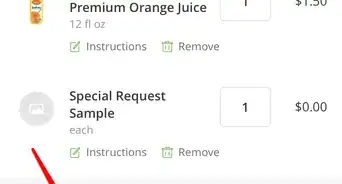
1Review your cart if you'd like to ensure the accuracy of the provided products. Click your Shopping cart icon and look at the initial information page - showing the items and quantities and even pictures of these items in the order.
-
2Scroll down and click the all-caps "Check Out" button. This should be below and to the right side of the screen, just below the order total.
-
3Log in (or create) a Shipt Shop account - Shipt's shop specifically for Shoppers.
-
4Click the all-caps "Sign In" button found just below the password box.
-
5Provide some security with the 2-step verification code the page will require. Type the six-digit numerical code into the box. The page will check this code and transition you to the next step automatically.
-
6Review the order once the page refreshes. You'll be shown your Shopper email, shipping address, delivery cost (this should be free), followed by the items that are in the order and your initial "receipt" including the subtotal, shipping (if applicable) and total.
-
7Click the "Complete Order" button. The "Complete Order" button places the order.
Part 4
Part 4 of 4:Waiting Out the Waiting Time
Part 4
-
1Let the Shipt Shop send you a copy of your emailed receipt to your email provided.
-
2Wait a few days until they send the items out to you. You will get a confirmation via email and text message when this happens.
-
3Wait for the package from Bluemark. It will be sent via USPS from a California address.







References
- ↑ Email from Shipt HQ. Get your protective equipment for shopping safely. Received monthly.