X
wikiHow is a “wiki,” similar to Wikipedia, which means that many of our articles are co-written by multiple authors. To create this article, volunteer authors worked to edit and improve it over time.
This article has been viewed 27,699 times.
Learn more...
WhatsApp is a mobile messaging app available for mobile phones only. Although WhatsApp isn’t readily available for the Apple iPad, you can download and install the app to your iPad using an iPhone and a third-party application known as iFunBox.
Steps
-
1Launch the iTunes application on your Windows or Mac computer.
-
2Click on “iTunes Store,” and search for “WhatsApp.”
-
3Select the option to download WhatsApp for the iPhone. Keep in mind that WhatsApp does not offer an iPad version at this time.
-
4Open Windows Explorer on a Windows-based PC, or a new Finder window on Mac OS X.
-
5Navigate to your music folder. The location of your music folder will vary depending on your computer’s operating system and user preferences.
-
6Click on “iTunes” within your music folder, then click on “Mobile Applications.”
- Some computers may display “iTunes Media” in place of Mobile Applications.
-
7Scroll through all .ipa files in the Mobile Applications folder until you locate the WhatsApp .ipa file.
-
8Drag and drop the WhatsApp .ipa file onto your desktop.
-
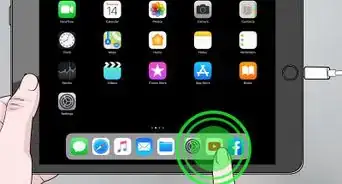
9Connect your iPad to your computer using a USB cable.
-
10Navigate to the iFunBox website at http://www.i-funbox.com/. iFunBox will allow you to manage files on your iPad so you can successfully use WhatsApp.
-
11Select the option to download iFunBox to your Windows or Mac computer.
-
12Launch iFunBox after the tool has been downloaded and installed on your computer.
-
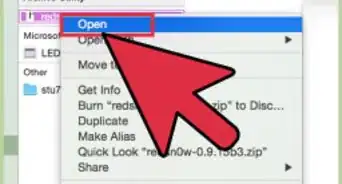
13Click on “Install App” within iFunBox, then select the WhatsApp .ipa file you saved to your desktop.
-
14Pick up the iPhone, and navigate to the App Store on the device.
-
15Search for and download WhatsApp for the iPhone.
- A fresh installation of WhatsApp on the iPhone is required for this task. If WhatsApp is already installed on the iPhone, you must delete and reinstall WhatsApp.
-
16Complete the WhatsApp setup process using the phone number you plan on using for WhatsApp on your iPad.
-
17Remove your iPad from the USB cable, and connect the iPhone to your computer.
-
18Click on “User Applications” under iPhone in the left sidebar of iFunBox.
-
19Double-click on the icon for WhatsApp.
-
20Copy the folders labeled “Library” and “Documents” to your desktop.
-
21Remove your iPhone from the USB cable, and reconnect the iPad to your computer.
-
22Click on “User Applications” under iPad in the left sidebar of iFunBox.
-
23Double-click on the WhatsApp icon.
-
24Click and drag the “Library” and “Documents” folders from your desktop to iFunBox. The contents of these folders will be replaced with the WhatsApp registration files from the iPhone.
-
25Disconnect your iPad from your computer.
-
26Close and reopen WhatsApp on your iPad. You will now have the ability to use WhatsApp on your iPad.[1]


Things You’ll Need
- Apple iPad
- Apple iPhone
- USB cable
- Windows or Mac computer