This article was written by Travis Boylls. Travis Boylls is a Technology Writer and Editor for wikiHow. Travis has experience writing technology-related articles, providing software customer service, and in graphic design. He specializes in Windows, macOS, Android, iOS, and Linux platforms. He studied graphic design at Pikes Peak Community College.
Are your earphones not working properly? Perhaps they are silent in one ear, or the overall sound is too quiet or has too much static? The good news is, there are a few things you can do to troubleshoot your headphones and perhaps fix them without using any tools. This wikiHow article teaches you how to troubleshoot and fix your earphones without any tools.
Steps
-
1Check to make sure they are connected correctly. If you notice your headphones don't sound right, the first thing you should do is check to make sure they are plugged in all the way. Disconnect the headphone and plug them back in. The 3mm connector should go all the way inside the headphone port and snap in place. Remove the 3mm headphone connector and reinsert it to make sure it is connected properly.
-
2Check to make sure the headphone port is working. If you are unable to insert the headphone jack all the way in the headphone port, or it feels loose when connected, the problem is most likely the headphone port instead of the headphones. Make sure there are no obstructions or dirt inside the headphone port.
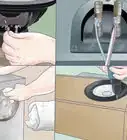
- If you suspect the headphone port is dirty, you can try cleaning it with a little bit of compressed air. Alternatively, you can power off the device and dip a cotton swap in some lukewarm water. Twist it into a thin strip and ring out all the excess liquid. Place it inside the headphone port and turn it to clean out the inside. Then use a dry cotton swab to dry out the inside. Wait a few hours for the headphone port to completely dry before powering the device back on.
Advertisement -
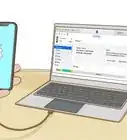
3Try using the headphones with a different device. Another way to check if it's the headphone jack is to try the headphones on a different device. If they work properly on a different device, then the problem is the device they are connected to and not the headphones. Alternatively, you can connect a different set of headphones or speakers to the same device and see if it experiences the same problem with multiple sets of headphones or speakers, then the problem is most likely the device.
- If the audio device is the problem rather than the headphones, it will most likely need to be serviced by a professional, or you will need to get a new device.
-
4Restart your device. If you are listening to audio on your phone, tablet, or computer, you can try restarting it to see if that fixes the problem.
-
5Make sure your audio device is up to date. If you are using a mobile phone, tablet, or computer, make sure the drivers, operating system, or firmware is up-to-date and running the latest version. This can help ensure that everything is working properly.
- Check the user's manual or manufacturer's web page for your devices to learn how to properly update the firmware on your audio devices.
-
6Unpair and pair wireless headphones again. If you are pair of wireless Bluetooth headphones, you can turn off Bluetooth on your device to disconnect all Bluetooth devices. Put the headphones in pairing mode once again and pair them with your device once again.
-
7Untangle the cables. If the cables are tangled, carefully untangle them and see if this resolves the problem.
-
8Bend and twist the cable in all areas. Connect the headphones to an audio device and play some audio. Go up and down the entire length of the cable bending and twisting it in different areas and see if the issue is resolved if you bend or twist the cable a certain way.
- If you find that the problem is resolved when you put pressure on the cable in a specific area, keep placing pressure on the cable and tightly wrap some electrical tape around the area to see if that fixes the problem.
- If you find the issue resolves when you bend the cable a certain way, try bending the wire over on itself and taping it in place to keep it from moving.
-
9Check for broken or exposed wires. While you are bending and twisting the cable, inspect the cable to make sure it isn't broken and that there aren't any exposed metal wires along the cable.
- If you find any exposed wires along the cable, cover the exposed area with electrical tape.
- If you find the cable is broken, it will most likely need to be repaired, serviced, or you will need to get a new set of headphones. Headphone cables most commonly break where they connect to the 3mm connector or where they connect to the headphones.
Advertisement


About This Article

1. Check to make sure the headphones are connected properly.
2. Make sure there is no debris or obstructions inside the headphone port.
3. Try the headphones with other audio devices to make sure your audio device is working.
4. Restart your audio device.
5. Unpair and then pair wireless Bluetooth headphones again.
6. Make sure your audio device has the latest drivers and updates.
7. Untangle the cables.
8. Bend and twist the cables along the entire length to check for shorts.
9. Check for broken or exposed wires.