This article was co-authored by wikiHow Staff. Our trained team of editors and researchers validate articles for accuracy and comprehensiveness. wikiHow's Content Management Team carefully monitors the work from our editorial staff to ensure that each article is backed by trusted research and meets our high quality standards.
The wikiHow Tech Team also followed the article's instructions and verified that they work.
This article has been viewed 20,322 times.
Learn more...
This wikiHow teaches you how to enable location services and find your current location on a map in Google Maps, using Android.
Steps
Part 1
Part 1 of 2:Enabling Location Services
-
1
-
2Scroll down and tap Location. This option is located under the PERSONAL heading on your Settings menu.Advertisement
-
3
-
4Tap Mode. This option should be at the top of your Location menu.
-
5Select High accuracy. When this option is selected, your Android will use GPS, Wi-Fi, Bluetooth, and mobile data to determine your exact location.Advertisement


Part 2
Part 2 of 2:Finding Your Location
-
1Open Google Maps on your Android. The Maps app looks like a tiny map icon with a red location pin dropped on it. You can find it on your Apps menu.
-
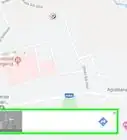
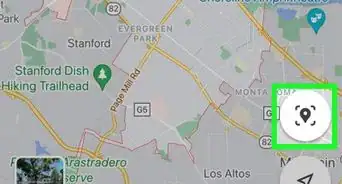
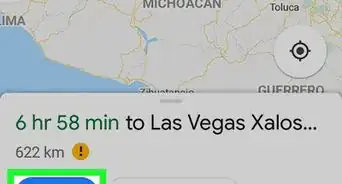
2Tap the crosshair icon. This button is located in the lower-right corner of your map. It will determine your current location, and center the map around it.
-
3Find the blue dot on the map. Your current location is marked with a blue dot on the map.
- The blue dot will move with live GPS updates if you're moving around.
Advertisement



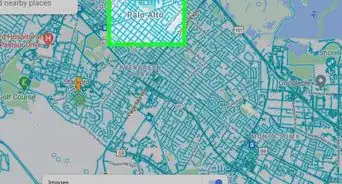

About This Article

1. Enable location on your Android.
2. Open Google Maps.
3. Tap the crosshair icon.
4. Find the blue dot on the map.