X
This article was co-authored by wikiHow Staff. Our trained team of editors and researchers validate articles for accuracy and comprehensiveness. wikiHow's Content Management Team carefully monitors the work from our editorial staff to ensure that each article is backed by trusted research and meets our high quality standards.
This article has been viewed 9,672 times.
Learn more...
This wikiHow teaches you how to send your location to a contact in a WhatsApp chat, or view a contact's location on a map when they share it with you, using Android. Your contact has to share their location with you in order to view it.
Steps
Method 1
Method 1 of 2:Sharing Your Location
Method 1
-
1Open WhatsApp on your Android. The WhatsApp icon looks like a white phone in a green speech bubble. You can find it on your Apps menu.
-
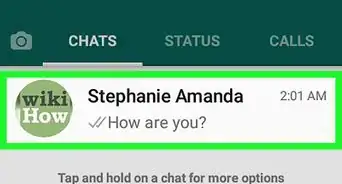
2Tap a chat on your CHATS list. This will open the conversation in full-screen.
- If WhatsApp opens up to a different tab, tap CHATS on the top-left to view a list of recent conversations.
- Alternatively, you can tap the green New Chat button on the bottom-right, and select a person to message from your contacts list.
-
3
-
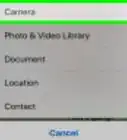
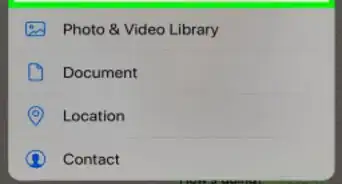
4Select Location. This will allow you to send a link to your contact, and share your location.
-
5Tap Share live location. This will send a location link to your contact. They can open the link and view your current location on a map.
- When you share live location, your location on the map will move with real-time updates as you move around.
- Alternatively, you can select Send your current location. This will share your current location with your contact. Unlike sharing live location, your location will not be updated.
-
6Tap CONTINUE. This will allow you to select your sharing settings.
-
7Select how long you want to share your location. You can share it for 15 minutes, 1 hour, or 8 hours.
- You can also type a message in the "Add comment" field here.
-
8


Method 2
Method 2
-
1Open WhatsApp on your Android. The WhatsApp icon looks like a white phone in a green speech bubble. You can find it on your Apps menu.
-
2Tap the chat with the shared location link. Find and tap your contact's name on the CHATS list, and open the conversation.
- If WhatsApp opens up to a different tab, tap CHATS on the top-left to view a list of your chats.
-
3Find your friend's location link. The shared location link will show up as a map thumbnail in the chat.
-
4Tap View Live Location. This will open a map in full-screen, and mark your friend's location.
-
5Find your friend's profile picture on the map. Your contact's location is marked on the map with a thumbnail of their profile picture.
- You may also see a blue dot on the map instead of their profile picture.



About This Article

wikiHow Staff
wikiHow Staff Writer
This article was co-authored by wikiHow Staff. Our trained team of editors and researchers validate articles for accuracy and comprehensiveness. wikiHow's Content Management Team carefully monitors the work from our editorial staff to ensure that each article is backed by trusted research and meets our high quality standards. This article has been viewed 9,672 times.
How helpful is this?
Co-authors: 2
Updated: September 16, 2018
Views: 9,672
Categories: WhatsApp