X
wikiHow is a “wiki,” similar to Wikipedia, which means that many of our articles are co-written by multiple authors. To create this article, 15 people, some anonymous, worked to edit and improve it over time.
The wikiHow Tech Team also followed the article's instructions and verified that they work.
This article has been viewed 175,165 times.
Learn more...
Steps
-
1
-
2Search your computer for the file lame_enc.dll on your computer. Audacity will ask you for this file. You'll have to remember the folder it's in or make a copy of the file in a new folder. If you don't have it, then this website has a free download.Advertisement
-
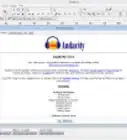
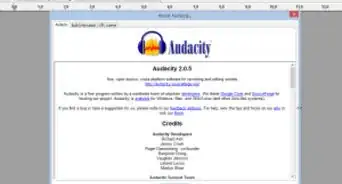
3Open Audacity.
-
4Check that the FFmpeg library is installed by going to Edit > Preferences.
-
5Clicking on the library tab. Click the download button next to the FFmpeg library.
-
6Click on File > Open.
-
7Go to "File type" drop-down arrow bar and choose FFmpeg-compatible files and click your desired video to be extracted and click Open.
-
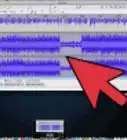
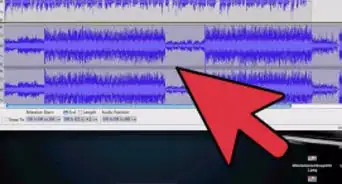
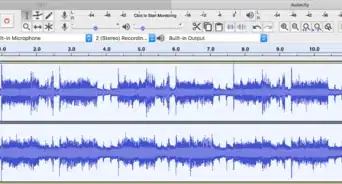
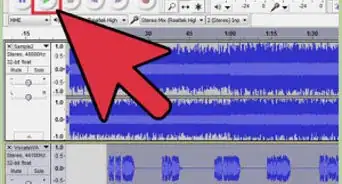
8You will see your MPEG video file has been loaded. You shouldn't be presented with the video, but with the audio from the video.
-
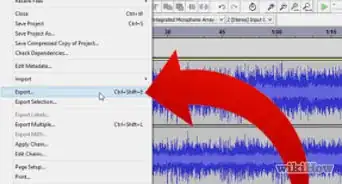
9Click on File > Export as Mp3.
- If Audacity asks for the lame_enc.dll file, then go to the folder the .dll file's in and click it.
- If it does not, then you have nothing to worry about
-
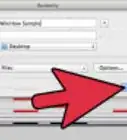
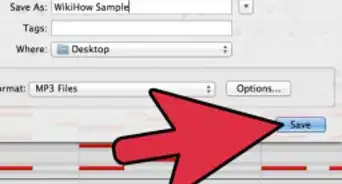
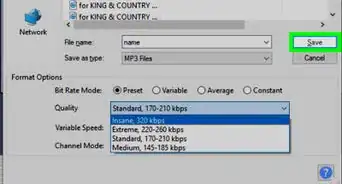
10Move your mouse to "Save as type" and click the drop-down arrow bar to choose mp3 files. Name your file if you want to and click Save.
-
11You should now have an Mp3 audio file of the video.Advertisement


Things You'll Need
- Computer
- Copy of Audacity 1.2.6 or later
- The lame_enc.dll file
- An MPEG video file
.webp)
About This Article
Advertisement