X
This article was written by Nicole Levine, MFA. Nicole Levine is a Technology Writer and Editor for wikiHow. She has more than 20 years of experience creating technical documentation and leading support teams at major web hosting and software companies. Nicole also holds an MFA in Creative Writing from Portland State University and teaches composition, fiction-writing, and zine-making at various institutions.
This article has been viewed 6,293 times.
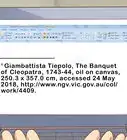
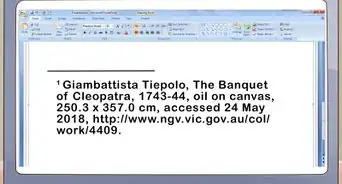
This wikiHow teaches you how to edit the footer text in a PowerPoint presentation using an iPhone or iPad.
Steps
Method 1
Method 1
-
1Open PowerPoint on your iPhone or iPad. It’s the red icon with a “P” on a sheet of paper. You’ll usually find it on the home screen.
-
2Tap the presentation you want to edit. This opens the presentation for editing.Advertisement
-
3Swipe left across the icons at the bottom of the screen. Stop swiping when you see an icon that looks like a square containing a “T” and several horizontal lines.
-
4Tap the text box icon. It’s the square with the “T” and horizontal lines inside. Two options will appear at the bottom of the screen.
-
5Tap Horizontal Text Box. This adds a rectangular box to the slide.
-
6Drag the text box to the bottom of the slide. Now you can use this box as a footer.
-
7Double-tap the text box. The screen will zoom to the text box and a cursor will appear inside.
-
8Type the text for your footer. If you need to resize the footer to accommodate more text, tap outside of the footer, tap the footer once, then drag the edges to the desired width.
-
9Tap anywhere else on the slide. Your footer is now in place.Advertisement


Method 2
Method 2
-
1Open PowerPoint on your iPhone or iPad. It’s the red icon with a “P” on a sheet of paper. You’ll usually find it on the home screen.
-
2Tap the presentation you want to edit. This opens the presentation for editing.
-
3Double-tap the footer. It’s at the bottom of the slide.
-
4Edit the footer as needed. You can add or remove text as necessary for your project.
-
5Tap anywhere else on the slide. The new version of your footer is now in place.Advertisement






About This Article

Nicole Levine, MFA
Tech Specialist
This article was written by Nicole Levine, MFA. Nicole Levine is a Technology Writer and Editor for wikiHow. She has more than 20 years of experience creating technical documentation and leading support teams at major web hosting and software companies. Nicole also holds an MFA in Creative Writing from Portland State University and teaches composition, fiction-writing, and zine-making at various institutions. This article has been viewed 6,293 times.
How helpful is this?
Co-authors: 1
Updated: July 18, 2018
Views: 6,293
Categories: PowerPoint Presentations
Advertisement